




Take you to participate in the Ethereum 2.0 Pyrmont testnet pledge


source|someresat.medium.com

source|
Reminder: Do not follow this guide to connect to the Eth2 mainnet. For the mainnet guide, please refer to "Ethereum 2.0 Mainnet Pledge Teaching (Ubuntu/Teku)".
This article explains in detail how to pledge on the Ethereum 2.0 mainnet through the multi-client testnet Pyrmont. Mainly based on the following technologies:
Ubuntu v20.04 (LTS) x64 serverGo Ethereum Node ()
code branchConsenSys' Ethereum 2.0 client, Teku ()
code branchPyrmont
The official multi-client testnet public network,MetaMask
PrometheusBrowser Plugin Encryption Wallet
Grafanaparameter
dash board
This guide includes the following instructions:
Connect and securely configure a freshly running Ubuntu server instance
Configure an Ethereum 1.0 node and run it as a service
Generate Pyrmont validator account key and deposit assets
Import the Pyrmont validator account key into the Teku client
first level title
remind
remind
Do not follow this guide to connect to the Eth2 mainnet. For the mainnet-specific guide, please refer to "Ethereum 2.0 Mainnet Staking Tutorial (Ubuntu/Teku)".
first level title
Acknowledgments and Disclaimer
This tutorial refers to various materials on the Internet, thanks to the contributors who provided the materials!ConsenSys DiscordgratefulEthStakerin the #teku channel and
The help and review provided by the team members on discord.
first level title
support
support
This process can be a little tricky. Besides me, here are two good resources you can go to for help:
Discord:https://discord.gg/7z8wzehjrJ
The EthStaker community is an Ethereum 2.0 Staking community, rich in resources and very friendly.first level title
condition
condition
Using this tutorial requires some background knowledge of Ethereum, ETH, Staking, Testnet, Linux, and MetaMask.
This tutorial also needs to be installed and running before starting:Ubuntu Server v20.04 (LTS) amd64
Or a newer Ubuntu server installed and running on a local computer, your network, or in the cloud (AWS, Digital Ocean, Microsoft Azure, etc.). It is recommended to use a local computer to improve the decentralization of the network - if the cloud provider goes down, all the nodes hosted on this provider will go offline.MetaMask. A computer with an operating system (Mac, Windows, Linux, etc.) and a browser (Brave, Safari, FireFox, etc.).
first level title
first level title
Require
Require
Ubuntu server use case. I have used v20.04 (LTS) amd64 server VM
first level title
overview
overview
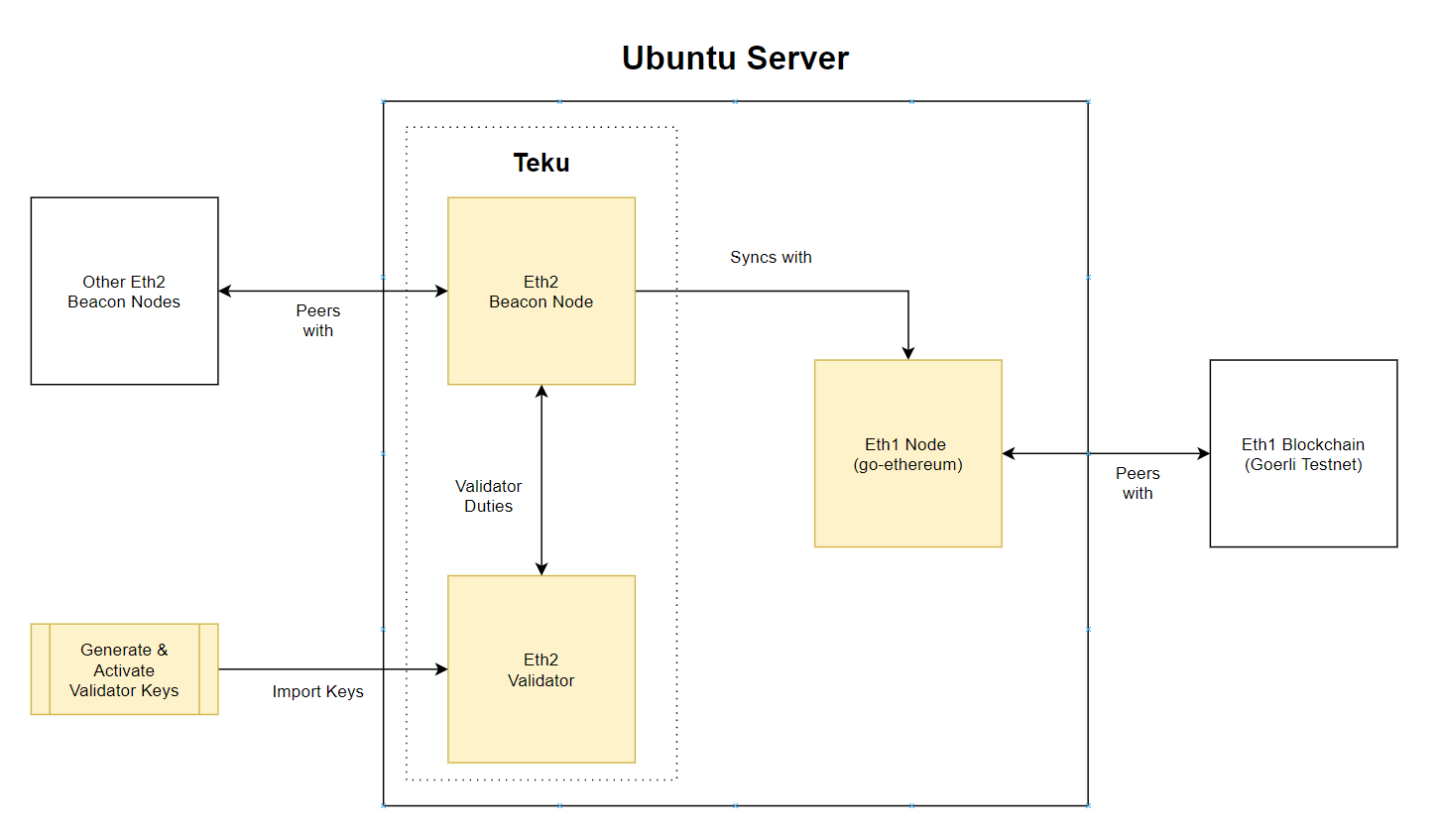
This tutorial is quite long. The following diagram briefly explains the steps of staking. The parts marked in yellow are the parts that will be covered in this article:
The whole process can be conceptualized as:
Set up an Eth1 node and synchronize the data of the Eth1 Göerli test network;
Generate validator keys and deposit data;
Configure Teku client and synchronize Eth1 node data
Let's get started now!
first level title
Using an SSH port, connect to your Ubuntu server. By default, the root account is usually disabled on Ubuntu, however some cloud providers can enable the root account. If you are logged in as root, it is best to re-create a user account with administrative privileges, because there is a hugerisk。
risk
# adduser
Note: If you are not logged in as root you can skip to step 1 directly.
Set a password and fill in other information.
# usermod -aG sudo
Grant administrative privileges to the new user by adding it to the sudo group.
When you log in, you can perform operations with superuser privileges by entering sudo before the command line.Optional: if you are using the root accountssh key
# rsync --archive --chown=
To connect to your Ubuntu instance, you will need to use the root account's SSH key data to connect to the new account.
first level title
Make sure the system is updated to the latest software and security settings.
$ sudo apt update && sudo apt upgrade$ sudo apt dist-upgrade && sudo apt autoremove
$ sudo reboot
first level title
Step 2: Secure the Server
Security is very important. But since this article is not a guide for security, only some basic settings are listed.
configure firewallUbuntu 20.04 server can use the defaultUFW Firewall
to restrict traffic to the server, but first set it to allow inbound traffic from SSH, Go Ethereum, Grafana, Teku.
allow ssh
Allows connections to the server via SSH. Next we will modify the default port 22 for security (since this is a common attack vector).
Note: If you choose not to modify the default SSH port (not recommended), then you need to add an operation - allow the default SSH port *$ sudo ufw allow 22/tcp* , and then skip to the step of allowing "Go Ethereum".
$ sudo ss -tulpn | grep ':
Choose a port number between 1024 - 49151 and run the following command to retrieve the unused port number. If it is red (used), select another port. For example: sudo ss -tulpn | grep ':6673'
$ sudo ufw allow
of inbound traffic. SSH requires the TCP protocol. For example: sudo ufw allow 6673/tcp
$ sudo nano /etc/ssh/sshd_config
Next, modify the default SSH port.
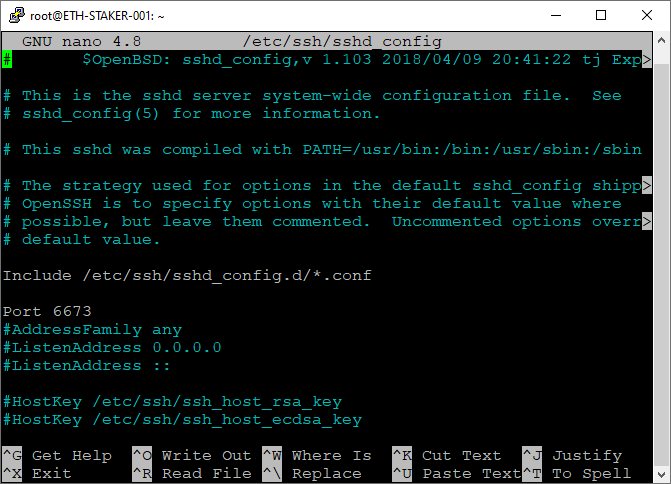
. Remove # (if any). Refer to the screenshot below, your document should look similar to the one shown below (except the port number is different). Save and exit.
$ sudo systemctl restart ssh
Restart the SSH service
Use your port number the next time you log in via SSH
$ sudo ufw deny 22/tcp
Optional: If you already use UFW on port 22/TCP, update your firewall to deny inbound traffic on that port. Be sure to do this after you have logged in using the new SSH port.
Allow Go EthereumInfuraAllow inbound requests from Go Ethereum peers (ports 30303/TPC and 30303/UDP). If you use a third party such as (
) managed Eth1 node, you can skip this step.
$ sudo ufw allow 30303
Note: If you are hosting your Ubuntu server locally, you will need to configure your network routers to allow inbound traffic from port 30303.
Allows for peer-to-peer connections with Teku’s peers so that on beacon chain nodes (Consensyssupplysupply
The default port 9000/TCP and 9000/UDP) to operate. .
$ sudo ufw allow 9000
Note: If you are hosting your Ubuntu server locally, you will need to configure your network routing and firewall to allow inbound traffic from port 9000.
Allow Grafana
$ sudo ufw allow 3000/tcp
Allows inbound requests to the Grafana web server (port 3000/TCP).
Allow Prometheus (optional)
$ sudo ufw allow 9090/tcp
You can also open port 9090/TCP if you want to access the Prometheus data service directly. This is not necessary if you are only using Grafana to view data. I did not open this port.
$ sudo ufw enable$ sudo ufw status numbered
The display should look like this
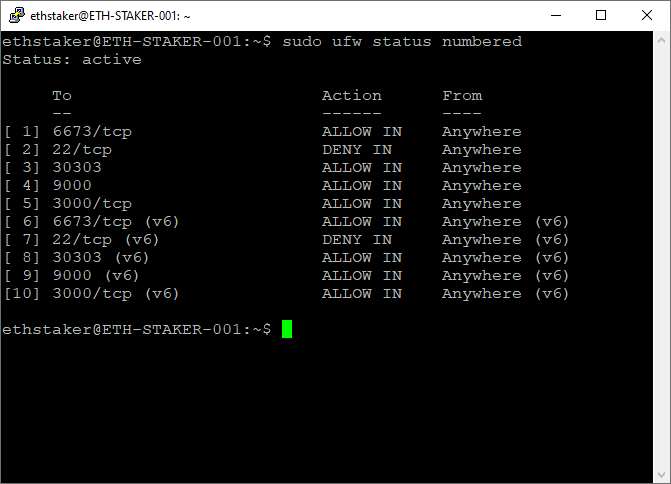
first level title
Step 3: Install and run a Go Ethereum nodeInfuraInstall and configure an Eth1.0 node to which the beacon chain will be connected. If you choose a third-party service (such as
), you can skip this step.
Install Go Ethereum
$ sudo add-apt-repository -y ppa:ethereum/ethereum
It is recommended to use PPA (Personal Package Archives, personal installation package archive) to install the Go Ethereum client.
$ sudo apt update$ sudo apt install geth
Update packages and install the latest stable version.
Run Go Ethereum as a background service
$ sudo useradd --no-create-home --shell /bin/false goeth
An account needs to be created to run this service, and this type of account cannot log in to the server.
$ sudo mkdir -p /var/lib/goethereum
Create a data directory for the Eth1 blockchain to store Eth1 node data.
$ sudo chown -R goeth:goeth /var/lib/goethereum
Set the permissions of the directory. The goeth account needs permission to modify the data directory.
$ sudo nano /etc/systemd/system/geth.service
Create a systemd service file to store the service configuration. We will use this configuration file to instruct systemd to run the geth process.
[Unit]Description=Ethereum go client
After=network.target
Wants=network.target[Service]
User=goeth
Group=goeth
Type=simple
Restart=always
RestartSec=5
ExecStart=geth --goerli --http --datadir /var/lib/goethereum[Install]
WantedBy=default.target
Copy and paste the following service configuration into the document.http://localhost:8545)。
flag --goerli is used to locate the Göerli testnet, and flag --http is used to expose an HTTP port (
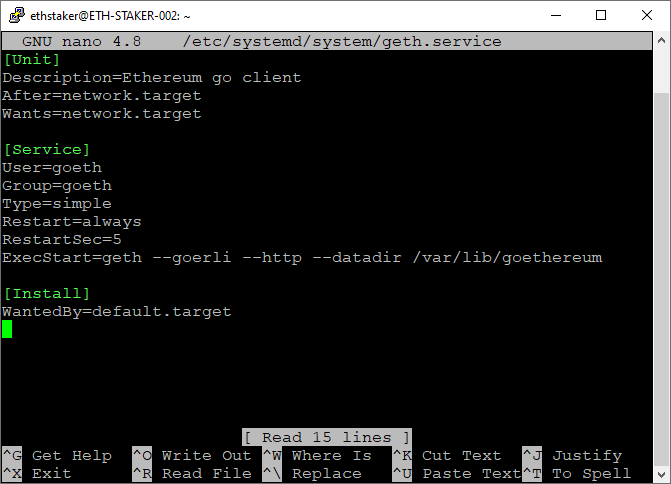
Refer to the screenshot below. Save and exit.
$ sudo systemctl daemon-reload
Reload systemd to show the above changes
$ sudo systemctl start geth$ sudo systemctl status geth
Start the service, and check to make sure it is running properly.
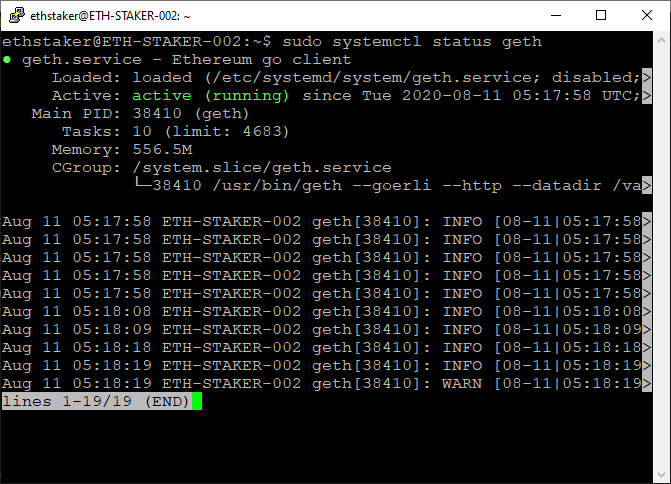
The display should look like the screenshot below."If you did everything right, it will say "active (running)" in green font
. If it doesn't show up, you'll need to go back and repeat the above steps to fix the problem. Press Q to exit.
$ sudo systemctl enable geth
Allows the geth service to start automatically on system reboot.
NOTE: Issuing Ctrl+C to quit out of journal doesn’t impact the service. Journal is simply a real-time view of the service logs.
The Go Ethereum node will start syncing. You can run the journal command to track progress. Press "CTRL+c" to exit.
$ sudo journalctl -fu geth.service
You can add some peers when it takes a long time (>10 minutes) to find peers to sync. accessherehere
$ sudo systemctl stop geth$ sudo nano /etc/systemd/system/geth.service
To get the latest manifest, run the following commands to modify the geth service:
ExecStart=geth --goerli --http --datadir /var/lib/goethereum --bootnodes "enode://46add44b9f13965f7b9875ac6b85f016f341012d84f975377573800a863526f4da19ae2c620ec73d11591fa9510e992ecc03ad0751f53cc02f7c7ed6d55c7291@94.237.54.114:30313,enode://119f66b04772e8d2e9d352b81a15aa49d565590bfc9a80fe732706919f8ccd00a471cf8433e398c55c4862aadb4aadf3a010201483b87e8358951698aa0b6f07@13.250.50.139:30303"
Modify the ExecStart line to add the --bootnodes flag: List the latest peers below, separated by commas.
$ sudo systemctl daemon-reload$ sudo systemctl start geth
$ sudo journalctl -fu geth.service
Save the file and exit. Then restart the service and watch.
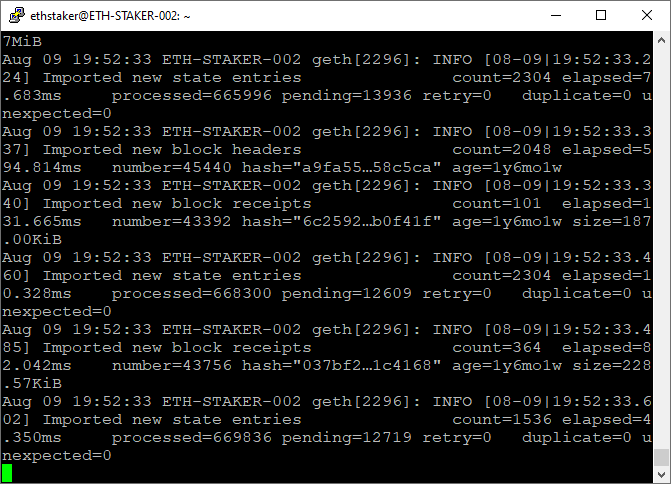
Before running the beacon chain, you need to wait for the nodes to sync. clickherehere
Access to the latest block.
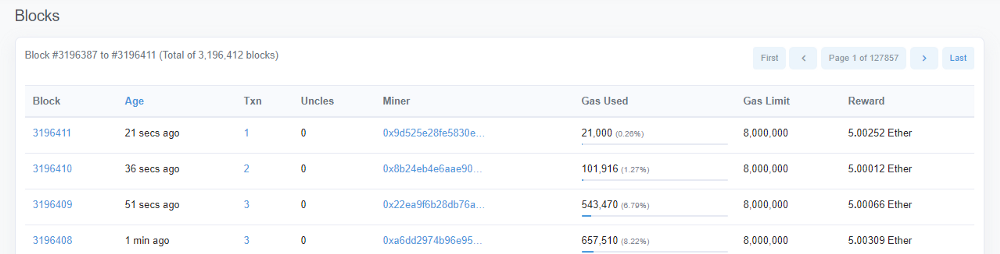
Next, we will prepare the validator deposit data. If you want to check the sync status, you can run the command sudo journalctl -fu geth.service at any time to check.
first level title
Step 4: Generate validator key and deposit data
In order to be able to run validator nodes on the Eth2.0 Pyrmont testnet, we will need to register one or more validator accounts.
Note: If you have already generated your deposit data and submitted your pledge deposit, you can skip this step. If you generated it elsewhere, you will need to copy your authenticator key to this server.
The registration steps are as follows:
Get Göerli ETH
Generate a validator key. A key represents a validator account.
Deposit 32 Göerli ETH to each validator account
Wait for your validator account to be activated
Let's get started now!
Get Goerli ETH
Use a computer with the browser plugin MetaMask installed.
Click on MetaMask and log in
Click the drop-down menu at the top and select the Göerli test network
Click on the account name and copy your Göerli testnet wallet addressauthenticated faucetUse your address fromethstaker DiscordGet Göerli ETH, or via
。
#request-goerli-eth channel on bot command: !goerliEth
Note: A validator requires a deposit of 32 ETH. Your MetaMask wallet needs to have sufficient Göerli ETH deposited into each validator client. For example, if you want to run 10 validators, you will need 320 Göerli ETH plus some extra money (say 1 Göerli ETH) to cover the gas fee.
go to
go toherehere
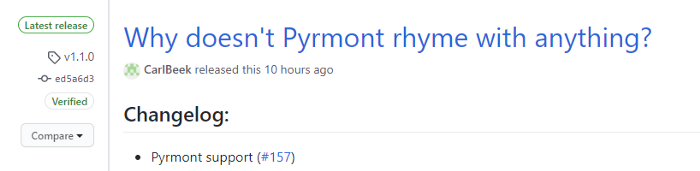
Get the "latest release" of the Deposit CLI application."In "asset
$ cd ~$ sudo apt install curl
$ curl -LO https://github.com/ethereum/eth2.0-deposit-cli/releases/download/v1.1.0/eth2deposit-cli-ed5a6d3-linux-amd64.tar.gz
One column to copy this link to the Linux version. We will use that link to download it as shown below. Modify the URL in the command to be the download link of the latest version.
$ sudo tar xvf eth2deposit-cli-ed5a6d3-linux-amd64.tar.gz$ cd eth2deposit-cli-ed5a6d3-linux-amd64
Run the application to generate deposit data and validator keys.
Will
$ sudo ./deposit new-mnemonic --num_validators
Change this to the number of validator keys you want to create. For example: --num_validators 5
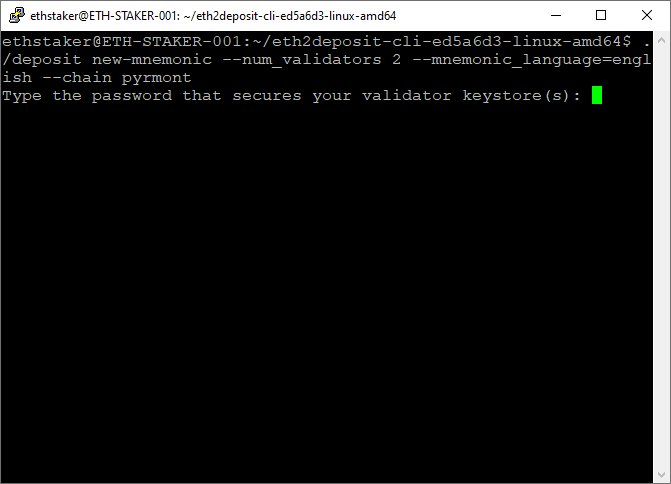
It will ask you to create a wallet password. We'll use this to load the validator key into the Teku client's validator wallet. Back it up somewhere safe.
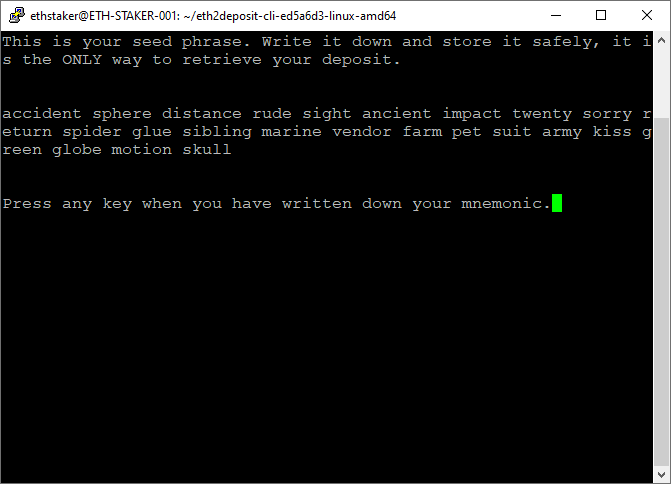
It generates a seed phrase (mnemonic). Back it up elsewhere. This is important, you will need it to generate withdrawal keys or add validators.
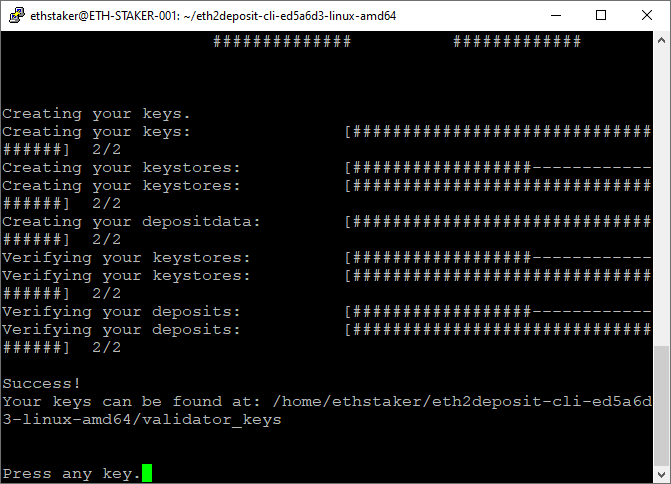
Once you have confirmed your mnemonic, your validator key will be created.
Newly created validator keys and deposit data files are created in a specific place. For example: eth2deposit-cli-ed5a6d3-linux-amd64/validator_keys. Mark it, we'll need it later.
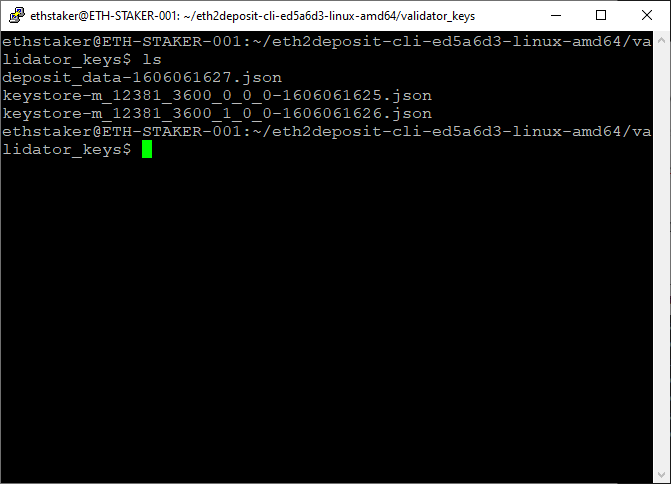
The contents of the folder are as follows:secure FTP (SFTP)The deposit_data-[timestamp].json file contains the validator's public key and information about the deposit. This document will be used in the next step to complete the deposit process. Since we're on a server and don't have a web browser, use the
Migrate the files to a computer running MetaMask. Remember to complete this step before proceeding.
The keystore-m...json document contains the encrypted signing key. Each validator account has a keystore-m. These will be used to create Teku client validator wallets.
$ cd ~$ rm -rf eth2deposit-cli-ed5a6d3-linux-amd64.tar.gz
Now that you have your deposit data and keystore files, it's time to set up Teku. We need to deposit assets into the key (deposit Göerli ETH to activate the validator) before setting up Teku, so we can verify the setup first. If validator deposits are activated, but the system is not ready, we will have a slowdown penalty.
first level title
Step 5: Mounting Conditions
Teku is built on the Java language, so it requires the Java Runtime Environment (JRE) to run and the Java Development Kit (JDK) to compile.
$ sudo apt install default-jre default-jdk$ java --version
$ javac --version
The display should look like
ethstaker@ETH-STAKER-001:~$ java --versionopenjdk 11.0.9.1 2020-11-04
OpenJDK Runtime Environment (build 11.0.9.1+1-Ubuntu-0ubuntu1.20.04)
OpenJDK 64-Bit Server VM (build 11.0.9.1+1-Ubuntu-0ubuntu1.20.04, mixed mode, sharing)
ethstaker@ETH-STAKER-001:~$ javac --version
javac 11.0.9.1
first level title
access
accessherehere
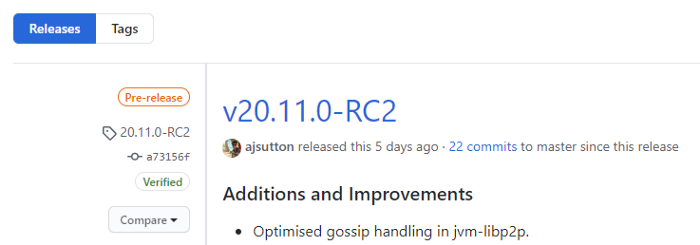
Use the label (in this case 20.11.0-RC2)
$ cd ~$ git clone --b 20.11.0-RC2 https://github.com/Consensys/teku.git
$ cd teku
useGradleuse
$ sudo ./gradlew installDist
to compile the codeBuild time takes about 3-6 minutes. Time to grab some drinks and rehydrate. can also read me。
If all operations are successful, please continue, if the operation fails, ask for help on the #teku channel of the ConsenSys Discord:https://discord.gg/trQ378WCp4
first level title
Step 7: Copy Teku Binaries
$ cd ~$ sudo cp -a teku/build/install/teku/. /usr/local/bin/teku
NOTE: You will need to do this every time you pull or build a new version of *teku* binaries. Please see the last appendix of this tutorial - Teku Updates.
first level title
Step 8: Configure Beacon Nodes and Validator Clients
We will run the Teku client as a service, so if the system reboots, the process will automatically restart.
Set up accounts and directories
$ sudo useradd --no-create-home --shell /bin/false teku
Create an account for the operation of beacon nodes and validator nodes. This type of account cannot be used to log into the server.
$ sudo mkdir -p /var/lib/teku$ sudo mkdir -p /etc/teku
Create a data directory for the Teku client's data files and a config directory for Teku's configuration files.
$ sudo cp -a /$HOME/
This way we can centralize the documentation in one place and copy the keystore-m...json documentation to the data directory we created earlier.
$ cd /var/lib/teku/validator_keys$ ls
$ sudo rm
, for example: eth2deposit-cli-ed5a6d3-linux-amd64/validator_keys. It's worth noting that we only copy the keystore-m file. Do not copy the deposit_data document. If you copied it, just delete it with the following code.
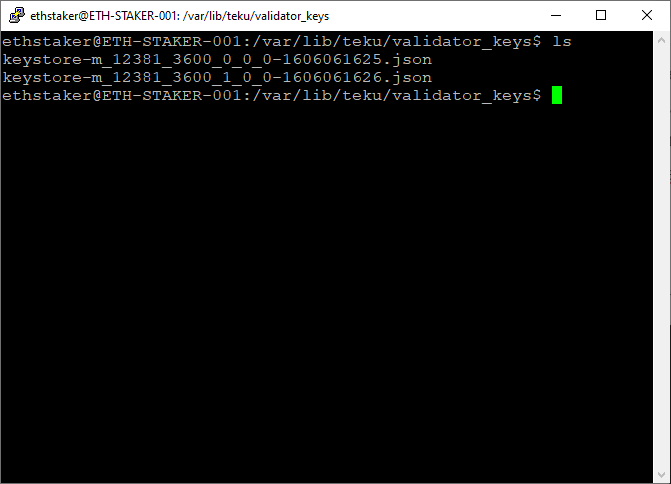
You should get the following result (depending on how many validator documents you have)
Create a validator password document
Teku Client requires Authenticators to have a password file to access each Authenticator account while running and automatically restarting the service.
$ ls /var/lib/teku/validator_keys
Create a password file with the same name for each keystore_m*.json file.
$ sudo nano /var/lib/teku/validator_keys/
exist
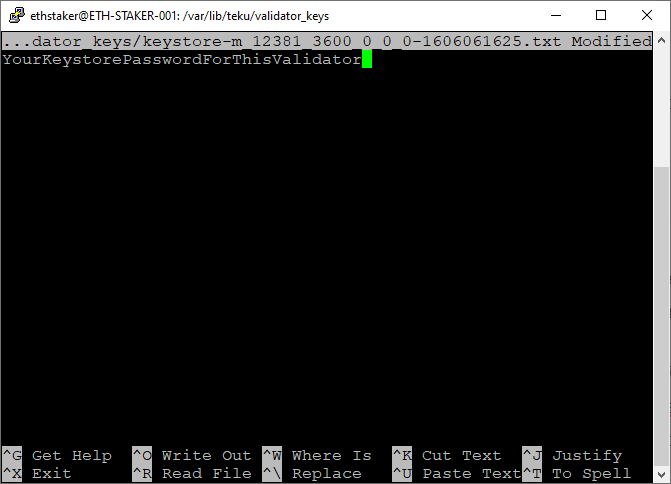
Fill in the name of the json document. Don't forget to add .txt at the end. In the txt file, fill in the password of the password store (the password you provided when creating the validator file in step 4) to YourKeystorePasswordForThisValidator. Save and launch. Repeat the above steps for each *.json file.
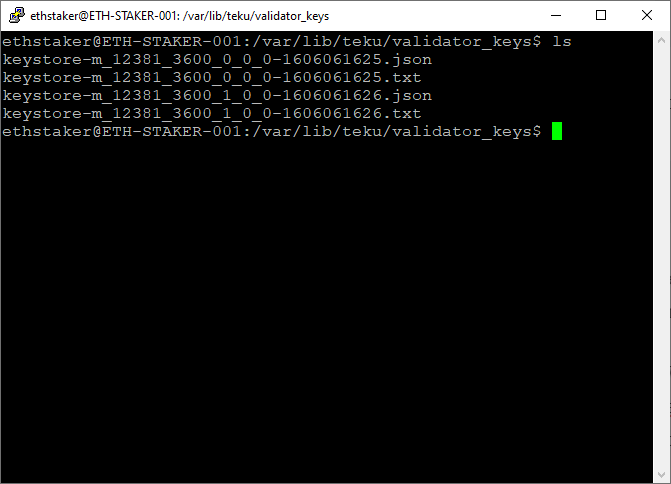
You should get the following result, this step is done.
NOTE: There should be no *deposit_data-\*.json* files present. If there is, delete it. It causes mispairing because the Teku client expects it to have a corresponding password file.
Setting permissions
$ sudo chown -R teku:teku /var/lib/teku$ sudo chown -R teku:teku /etc/teku
$ ls -dl /var/lib/teku; ls -dl /etc/teku
Set directory permissions. The teku account needs permission to modify the number directory. Verify that directory permissions are set correctly.
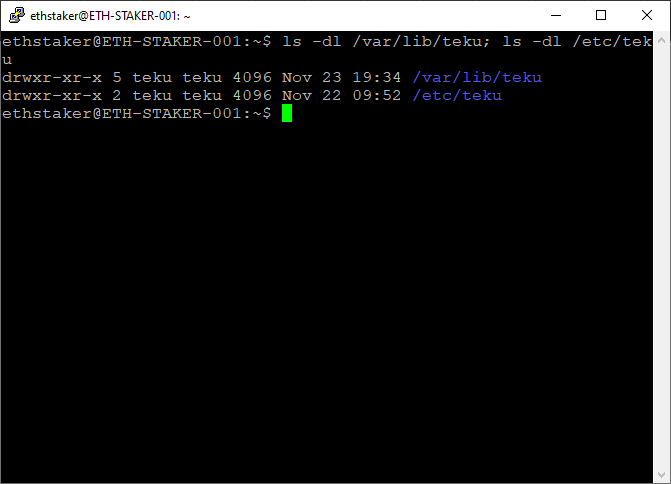
Should look like this:
$ sudo chmod -R 700 /var/lib/teku/validator_keys$ sudo ls -lh /var/lib/teku/validator_keys
Apply document permissions to certifier keys to provide an extra layer of security and prevent accidental deletion. Give the (teku) user read/write/execute permissions. Confirm that document permissions are set correctly.
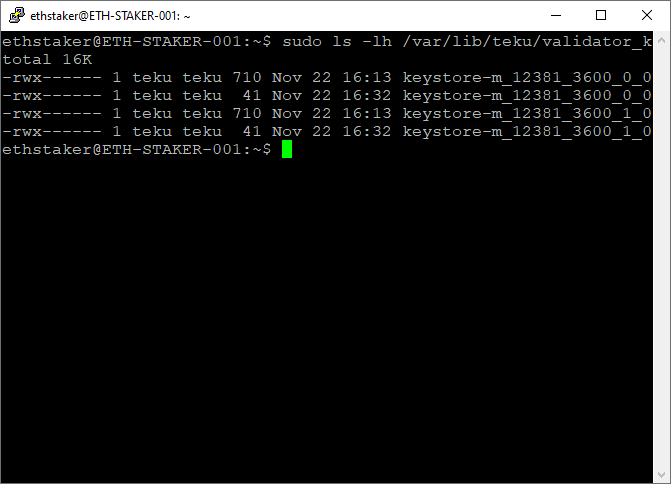
The result should look like this
Now that we have set up the authenticator key and passphrase, it's time to configure the service.
Create a Teku configuration file
$ sudo nano /etc/teku/teku.yaml
Teku clients can read command line options through configuration files. Create now.
data-base-path: "/var/lib/teku"network: "pyrmont"eth1-endpoint: "http://127.0.0.1:8545/"validator-keys: "/var/lib/teku/validator_keys:/var/lib/teku/validator_keys"validators-graffiti: "
rest-api-docs-enabled: true
Paste the code below into the document.
flagdata-base-path defines where the service stores data.
The flag validators-keys indicates the location of the key file in the password file. This way, they are all in the same directory.
exist
Enter the text you want. For example: validators-graffiti:
The log-destination: CONSOLE setting is recommended when using systemd
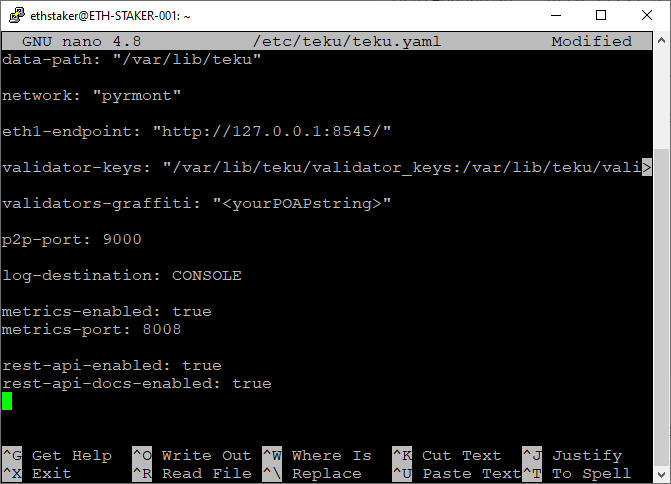
Refer to the screenshot below. Your documentation should be similar to it. Exit and save.
Create and configure Teku service
$ sudo nano /etc/systemd/system/teku.service
Create a systemd service file to store configuration services.
[Unit]Description=Teku Client
Wants=network-online.target
After=network-online.target[Service]
Type=simple
User=teku
Group=teku
Restart=always
RestartSec=5
Environment="JAVA_OPTS=-Xmx2g"
ExecStart=/usr/local/bin/teku/bin/teku --config-file=/etc/teku/teku.yaml[Install]
WantedBy=multi-user.target
Copy and paste the code below into the document
Java (the programming language used by Teku) is designed to take up a lot of RAM when running. flagEnvironment="JAVA_OPTS=-Xmx2g" limits the heap size to 2GB, so Teku runs with about 3–3.5GB of total memory available.
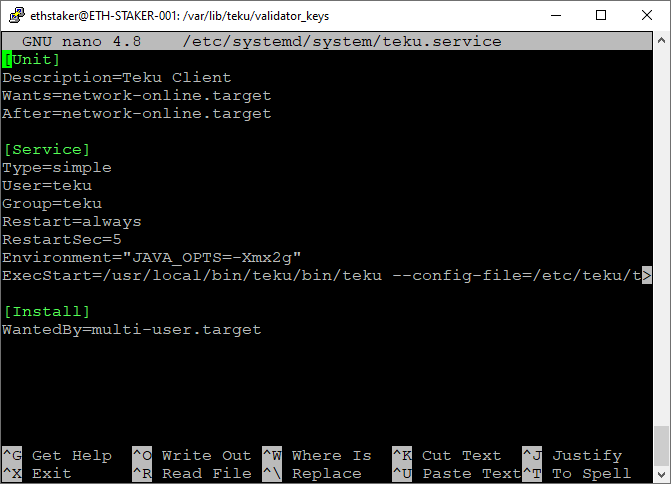
Refer to the screenshot below. Your documentation should be similar to it. Exit and save.
$ sudo systemctl daemon-reload
Reload systemd to show the changes.
Note: If you are running a local Eth1 node (see step 3), you should wait until it is fully synced before starting the Teku service. Check the progress here: *sudo journalctl -fu geth.service*
$ sudo systemctl start teku$ sudo systemctl status teku
Start the service and check to make sure it is running correctly.
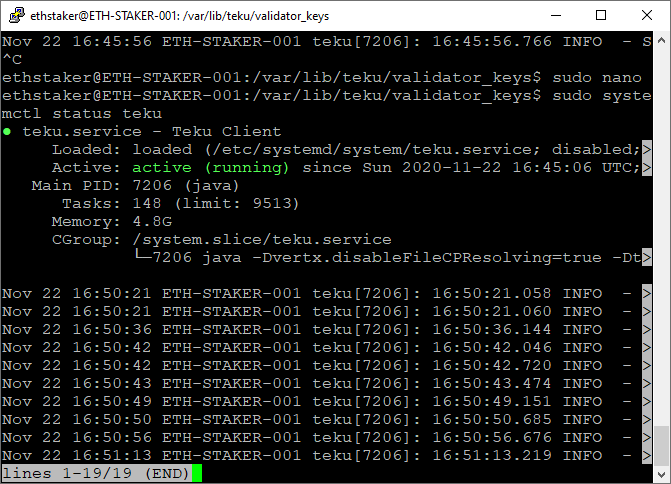
The displayed result should be like this:"If you did everything right, it will say "active (running)" in green font
. If it doesn't show up, you'll need to go back and repeat the above steps to fix the problem. Press Q to exit.
$ sudo systemctl enable teku
Allows the service to automatically restart when the system restarts.
The beacon node will start synchronizing data. It may take several hours to fully sync. You can track progress by running the journal command. Press CTRL+c to exit.
$ sudo journalctl -fu teku.service
Note: Pressing Ctrl+C to exit the journal will not affect the service. journal indicates a real-time view of the service log.
Started Teku Client....
INFO - Loading 2 validator keys...
INFO - BLS: loaded BLST library
INFO - Loaded 2 Validators: 96a349b, b7f51b6
...
INFO - Sync Event *** Current slot: 30174, Head slot: 54, Connected peers: 1
INFO - Sync Event *** Current slot: 30175, Head slot: 92, Connected peers: 6
INFO - Sync Event *** Current slot: 30176, Head slot: 128, Connected peers: 8
INFO - Sync Event *** Current slot: 30177, Head slot: 160, Connected peers: 10
This step is over. We now have a running beacon chain and a validator node. congratulations! You are awesome!
first level title
Step 9: Make a Validator Deposit
Now that your setup is up and running, you need to deposit 32 Göerli ETH to the Pyrmont testnet.
NOTE: If you have already submitted your pledge deposit, you can skip this step.
This step is about depositing the required Göerli ETH into the Pyrmont testnet's deposit contract. This requires launching your MetaMask (or other) wallet via Pyrmont's Launchpad website on a browser.
NOTE: If this tutorial is for mainnet (which it is not), you will need to wait until your Eth1 node and beacon node are fully synced before making your deposit. If you don't, you may be subject to slowdown penalties when your Eth1 node or beacon chain is syncing.https://pyrmont.launchpad.ethereum.org/
Launchpad for the Pyrmont testnet:
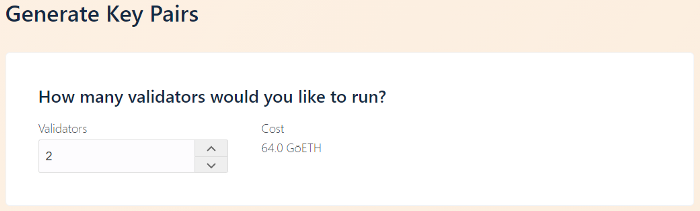
Keep clicking through the warning steps as the screen transitions until you reach the key pair generation section. Choose the number of validators you intend to run. Choose a value that matches the number of certifier files you generated in step 4.
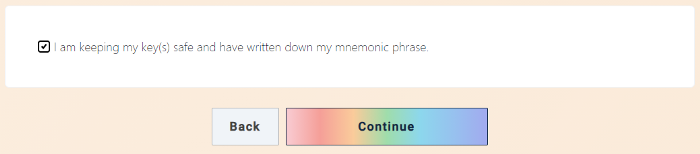
Scroll down to see if you agree with the content, then click "Continue".
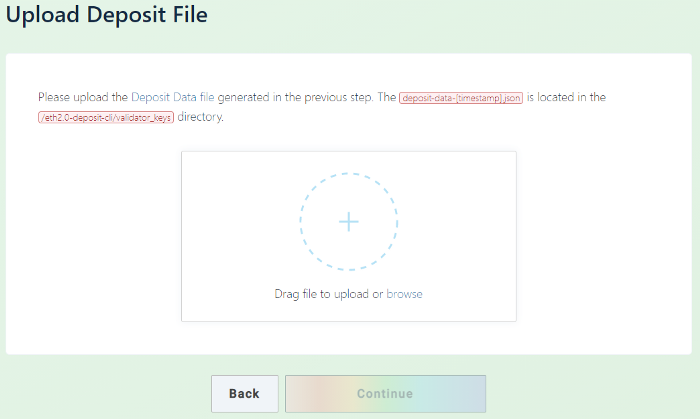
You will be asked to upload the deposit_data-[timestamp].json file. You generated this document in the air, copy it to a computer with a browser. Browse/select or drag and drop the document, then click Continue.
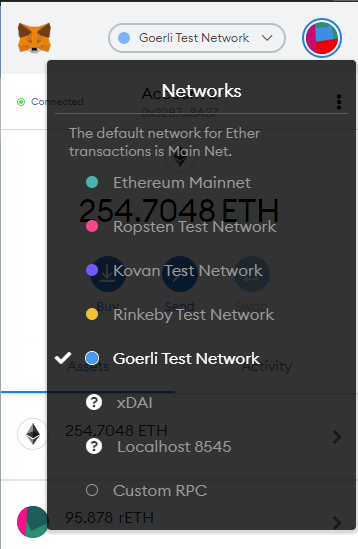
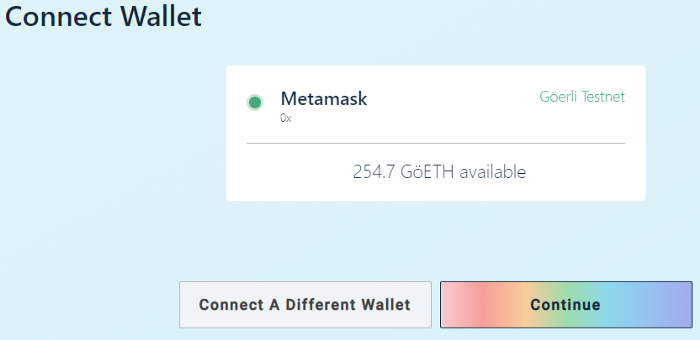
Connect your wallet. Select MetaMask (or any other supported wallet), log in, select the Göerli test network where your Göerli ETH is stored, and click Continue.
Note: Please be 100% sure that you selected the Göerli test network on MetaMask. Do not send real ETH to the Pyrmont testnet.
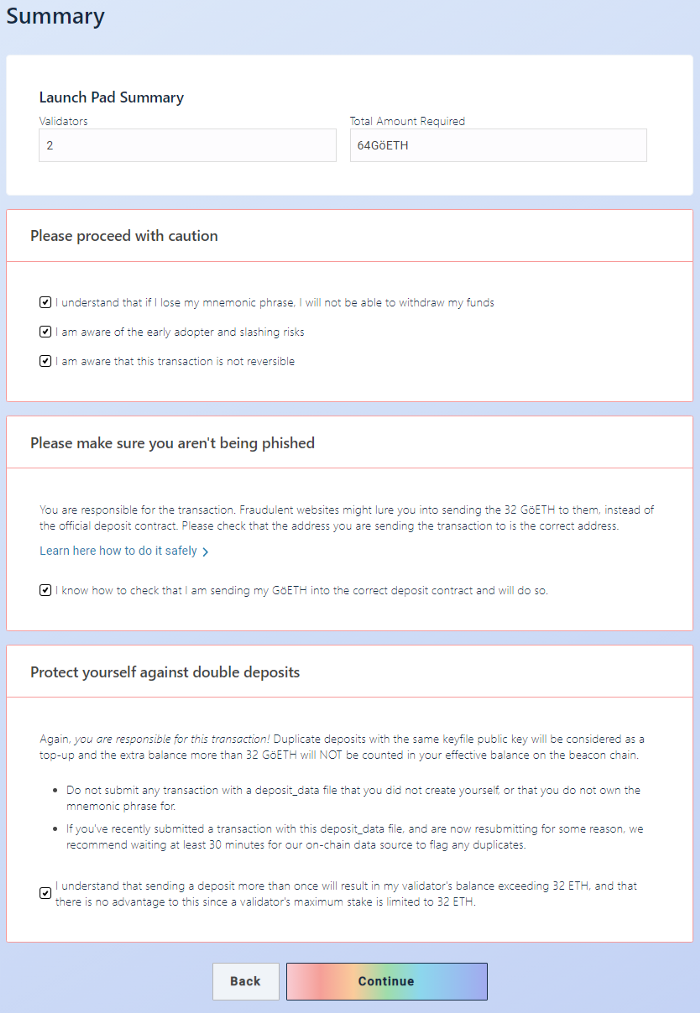
A Summary will then appear showing the number of validators and the amount of Göerli ETH required. Tick those boxes if you agree, then click Continue.
click"Initiate All Transactions"click
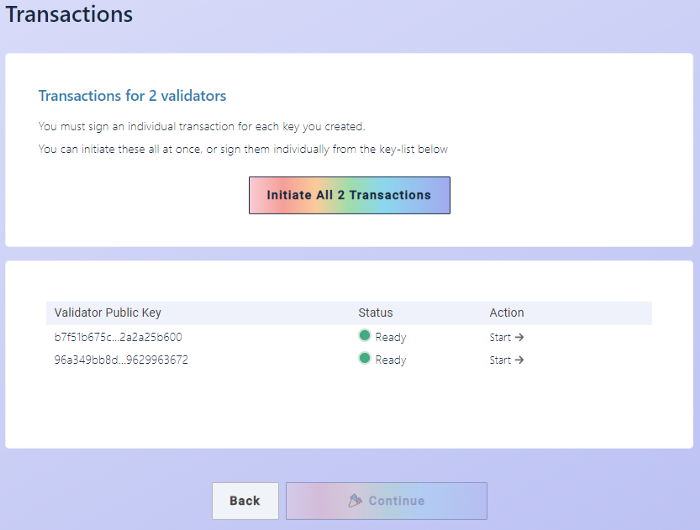
(start all transactions).
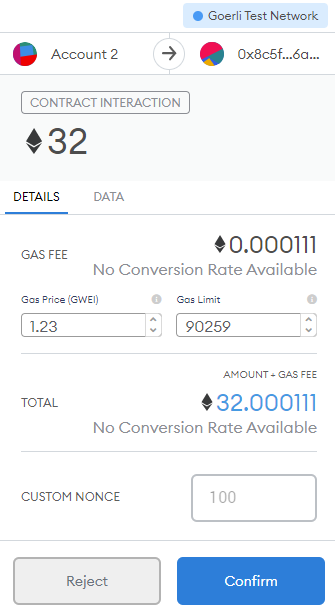
Multiple instances of MetaMask will pop up, each making a transaction request for 32 Göerli ETH to the Pyrmont testnet. Please confirm each transaction.
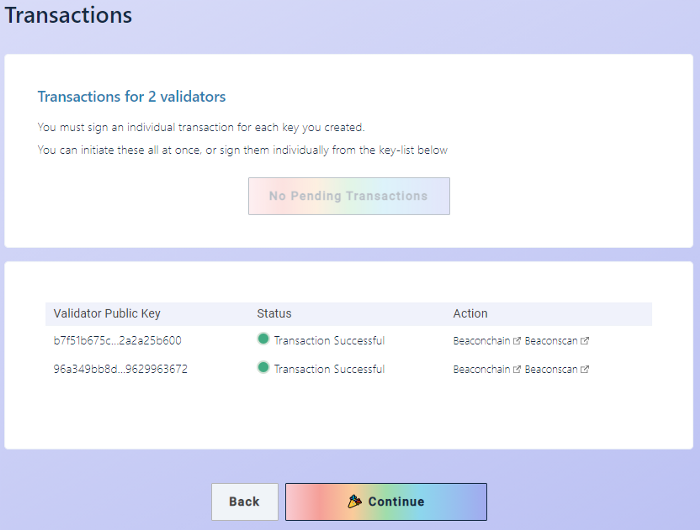
When all transactions are successfully completed, your stake is complete!
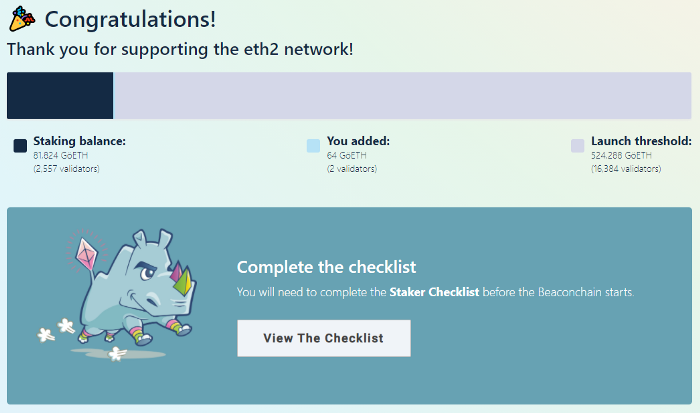
Congratulations!
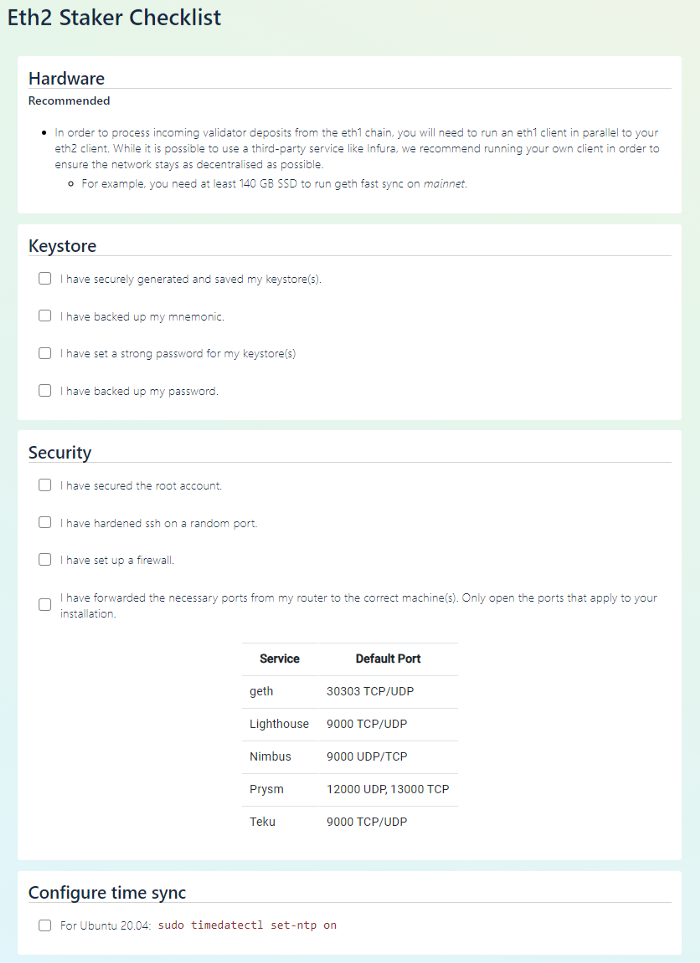
There will be a checklist at the end. There is a lot of useful information in it. you can take a look
Check the status of your validator deposit
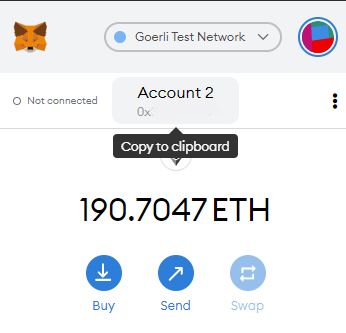
Newly joined validators will need to wait (a few hours to a few days) to activate. You can check the status of your key by following these steps:
Copy your Göerli testnet wallet addresshttps://pyrmont.beaconcha.in/
Go to:
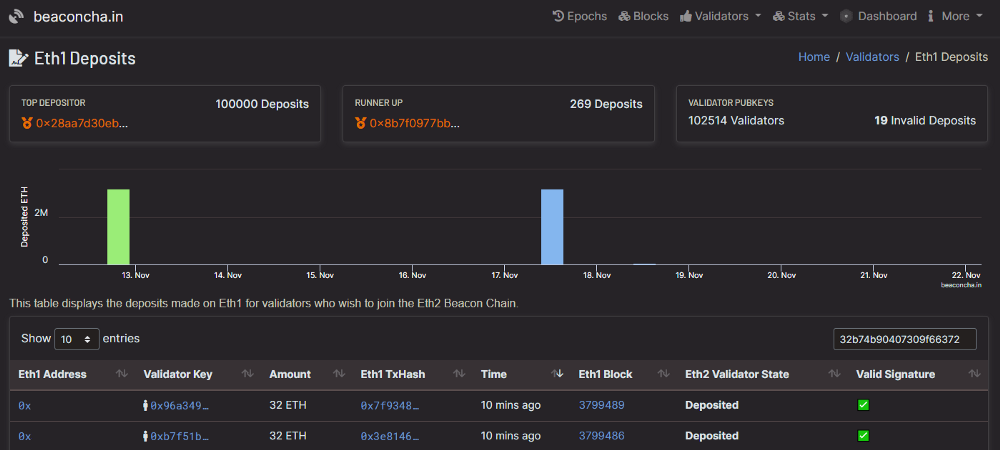
Search for your wallet address. Your key will be displayed.
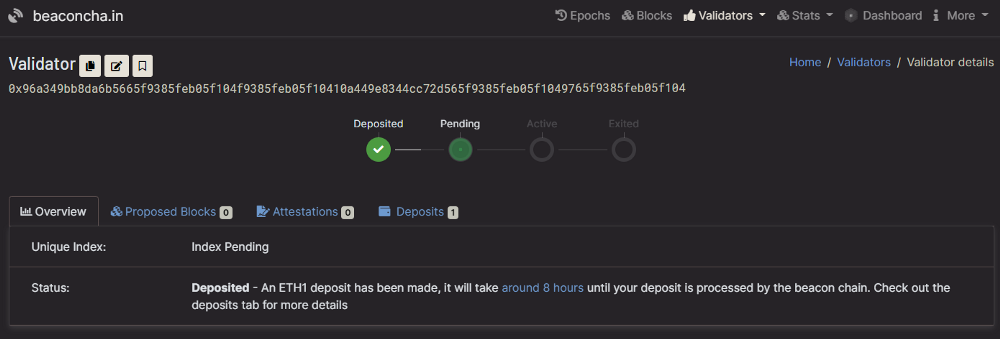
You now have a working beacon chain, a validator node, and your testnet deposits in front of you. Once your deposit is activated, you will start working and earning. congratulations!
first level title
Prometheus is an open source system that provides monitoring capabilities and an alerting toolbox. It runs as a service on your Ubuntu server, and its job is to fetch data. For more information seehere。
here
We will use Prometheus to expose the beacon chain, validator runtime data, and instance-specific data.
create user account
$ sudo useradd --no-create-home --shell /bin/false prometheus$ sudo useradd --no-create-home --shell /bin/false node_exporter
These services are run under the account. These accounts cannot log into the server.
Create a directory
$ sudo mkdir /etc/prometheus$ sudo mkdir /var/lib/prometheus
Program and data directories.
$ sudo chown -R prometheus:prometheus /etc/prometheus$ sudo chown -R prometheus:prometheus /var/lib/prometheus
Download Prometheus software
fromfromPrometheus download page
$ cd ~$ curl -LO https://github.com/prometheus/prometheus/releases/download/v2.22.2/prometheus-2.22.2.linux-amd64.tar.gz
Modify the version number of the latest version. Rpi users should definitely get the ARM binaries.
$ tar xvf prometheus-2.22.2.linux-amd64.tar.gz
Open the tar archive. It contains two binary documents and some content documents.
$ sudo cp prometheus-2.22.2.linux-amd64/prometheus /usr/local/bin/$ sudo cp prometheus-2.22.2.linux-amd64/promtool /usr/local/bin/
Copy the binaries to the following locations.
$ sudo chown -R prometheus:prometheus /usr/local/bin/prometheus$ sudo chown -R prometheus:prometheus /usr/local/bin/promtool
Set the ownership of the directory. The prometheus account will manage these.
$ sudo cp -r prometheus-2.22.2.linux-amd64/consoles /etc/prometheus$ sudo cp -r prometheus-2.22.2.linux-amd64/console_libraries /etc/prometheus
Copy these content documents to the following locations.
$ sudo chown -R prometheus:prometheus /etc/prometheus/consoles$ sudo chown -R prometheus:prometheus /etc/prometheus/console_libraries
Set ownership of directories and files (-R). The prometheus account will manage these.
$ rm -rf prometheus-2.22.2.linux-amd64.tar.gz prometheus-2.22.2.linux-amd64
Remove download archive.
Edit configuration document
Prometheus uses a configuration file so it knows where to fetch data.
$ sudo nano /etc/prometheus/prometheus.yml
Opens the YAML configuration file for editing.
global: scrape_interval: 15s
scrape_configs:
- job_name: "prometheus"
static_configs:
- targets: ["localhost:9090"]
- job_name: "teku"
scrape_timeout: 10s
metrics_path: /metrics
scheme: http
static_configs:
- targets: ["localhost:8008"]
Copy the code below into the document, be careful not to make any other edits, and exit to save the file.
$ sudo chown -R prometheus:prometheus /etc/prometheus/prometheus.yml
Set ownership for the config file. The prometheus account will have this ownership.
$ sudo -u prometheus /usr/local/bin/prometheus \ --config.file /etc/prometheus/prometheus.yml \
--storage.tsdb.path /var/lib/prometheus/ \
--web.console.templates=/etc/prometheus/consoles \
--web.console.libraries=/etc/prometheus/console_libraries
Finally, test that the server is running correctly.
level=info ts=2020-11-22T17:24:35.396Z caller=main.go:684 msg="Server is ready to receive web requests."
The output should be as follows. Press Ctrl+C to exit.
Set Prometheus as an auto-start service
$ sudo nano /etc/systemd/system/prometheus.service
Create a systemd service file to store the service config file, which will tell systemd to run Prometheus as the prometheus user, put the configuration file in the directory /etc/prometheus/prometheus.yml, and save it in the directory /var/lib/prometheus.
[Unit]Description=Prometheus
Wants=network-online.target
After=network-online.target[Service]
Type=simple
User=prometheus
Group=prometheus
Restart=always
RestartSec=5
ExecStart=/usr/local/bin/prometheus \
--config.file /etc/prometheus/prometheus.yml \
--storage.tsdb.path /var/lib/prometheus/ \
--web.console.templates=/etc/prometheus/consoles \
--web.console.libraries=/etc/prometheus/console_libraries[Install]
WantedBy=multi-user.target
Copy the following code into the document. Exit and save.
$ sudo systemctl daemon-reload
Reload systemd to show the changes.
$ sudo systemctl start prometheus$ sudo systemctl status prometheus
Then start the service with the command below and check the status to make sure it is running correctly.
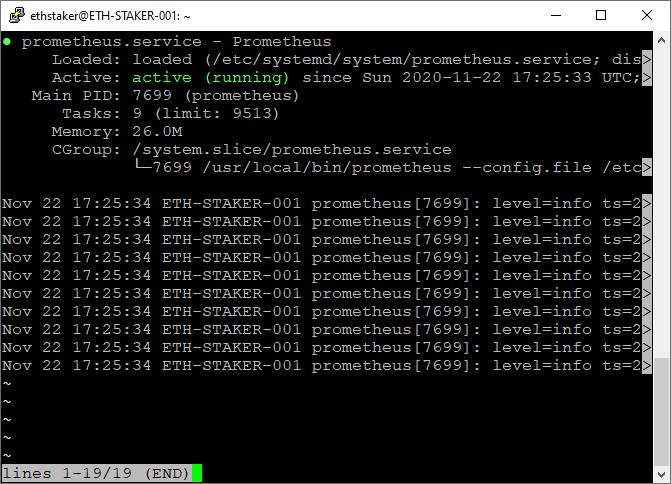
The output should be as shown below."If you did everything right, it will say "active (running)" in green font
text
$ sudo systemctl enable prometheus
first level title
Step 11: Install Node ExporterNode_Exporterextension. If you specify a different version below, you can find it inherehere
$ cd ~$ curl -LO https://github.com/prometheus/node_exporter/releases/download/v1.0.1/node_exporter-1.0.1.linux-amd64.tar.gz
Find the latest stable version. Rpi users remember to get the ARM binaries.
$ tar xvf node_exporter-1.0.1.linux-amd64.tar.gz
Open the downloaded software.
$ sudo cp node_exporter-1.0.1.linux-amd64/node_exporter /usr/local/bin$ sudo chown -R node_exporter:node_exporter /usr/local/bin/node_exporter
Copy the binaries to the directory /usr/local/bin and set user and group ownership to the node_exporter user we created earlier.
$ rm -rf node_exporter-1.0.1.linux-amd64.tar.gz node_exporter-1.0.1.linux-amd64
Remove downloaded archives.
Set Node Exporter as an auto-started service
$ sudo nano /etc/systemd/system/node_exporter.service
Create a systemd service file to store the service config file, which will tell systemd to run Node_Exporter as the node_exporter user.
[Unit]Description=Node Exporter
Wants=network-online.target
After=network-online.target[Service]
User=node_exporter
Group=node_exporter
Type=simple
ExecStart=/usr/local/bin/node_exporter[Install]
WantedBy=multi-user.target
Copy the following code into the document. Exit and save.
$ sudo systemctl daemon-reload
Reload systemd to show the changes.
$ sudo systemctl start node_exporter$ sudo systemctl status node_exporter
Then start the service with the command below and check the status to make sure it is running correctly.
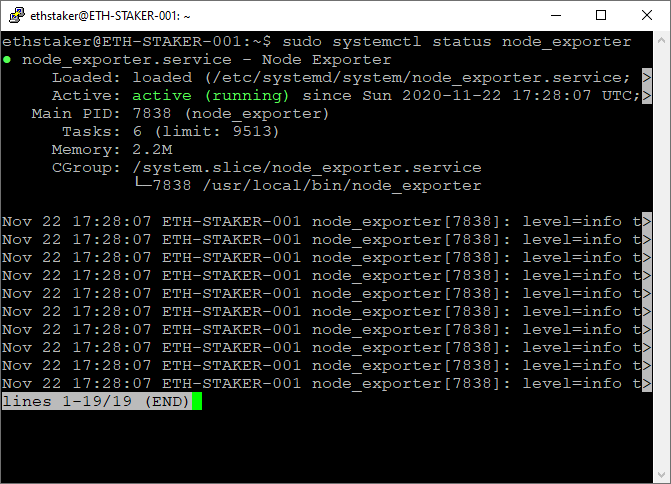
The output should be as shown below."If you did everything right, it will say "active (running)" in green font
. If it doesn't show up, you'll need to go back and repeat the above steps to fix the problem. Press Q to exit.
$ sudo systemctl enable node_exporter
Finally, allow Node Exporter to start with system boot.
Test Prometheus and Node Exporter (optional)
http://
first level title
Step 12: Install Grafana
Prometheus is our data source, and Grafana provides us with the function of reporting dashboard data. Next install Grafana and configure the dashboard.
We will use an APT repository for installation as this will make installation and updates easier. Grafana can be found in the official Ubuntu package repository, but that version may not be the latest, so we will use Grafana's official repository.
$ wget -q -O - https://packages.grafana.com/gpg.key | sudo apt-key add -
Download the Grafana GPG key with wget, then pipe the output to apt-key. This will add the key to the list of trusted keys for your APT installation.
$ sudo add-apt-repository "deb https://packages.grafana.com/oss/deb stable main"
Add the Grafana repository to APT's sources.
$ sudo apt update
Flush the apt cache.
$ apt-cache policy grafana
Confirm that Grafana is installed from the repository.
grafana: Installed: (none)
Candidate: 7.3.3
Version table:
7.3.3 500
500 https://packages.grafana.com/oss/deb stable/main amd64 Packages
7.3.2 500
500 https://packages.grafana.com/oss/deb stable/main amd64 Packages
7.3.1 500
500 https://packages.grafana.com/oss/deb stable/main amd64
...
Check that the version shown at the top matches theherehere
$ sudo apt install grafana
The latest version shown matches. Then continue with the installation.
$ sudo systemctl start grafana-server$ sudo systemctl status grafana-server
Start the Grafana server and check the status to make sure it is running correctly.
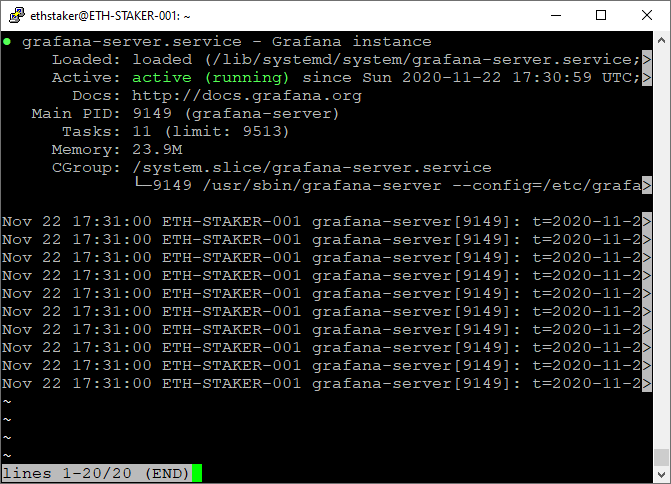
The output should look like this:"If you did everything right, it will say "active (running)" in green font
. If it doesn't show up, you'll need to go back and repeat the above steps to fix the problem. Press Q to exit.
$ sudo systemctl enable grafana-server
Allow Grafana to start with system boot.
Configure Grafana login
:3000/, the Grafana login window will appear.
Enter username and password in admin. The system will ask you to change your password, please do so.
Configure the data source of Grafana
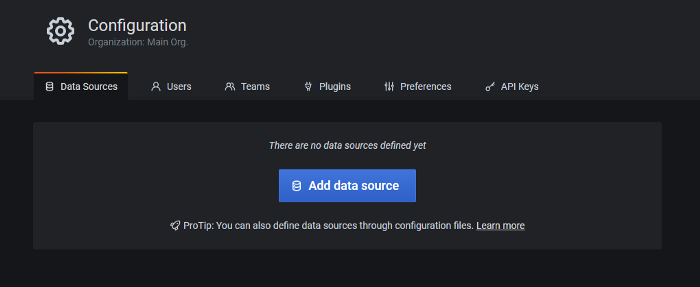
Let's configure the data source. Move your mouse to the gear icon on the left menu bar, a menu will pop up - select Data Sources.
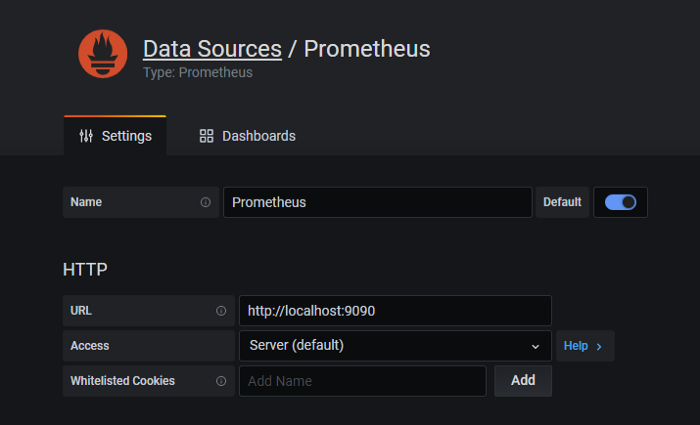
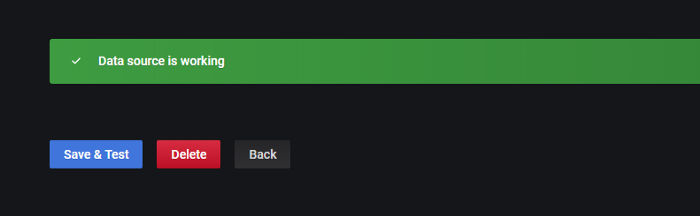
Click Add Data Source and select Prometheus. Enter http://localhost:9090 in the URL, then click Save and Test.
Import Grafana dashboard
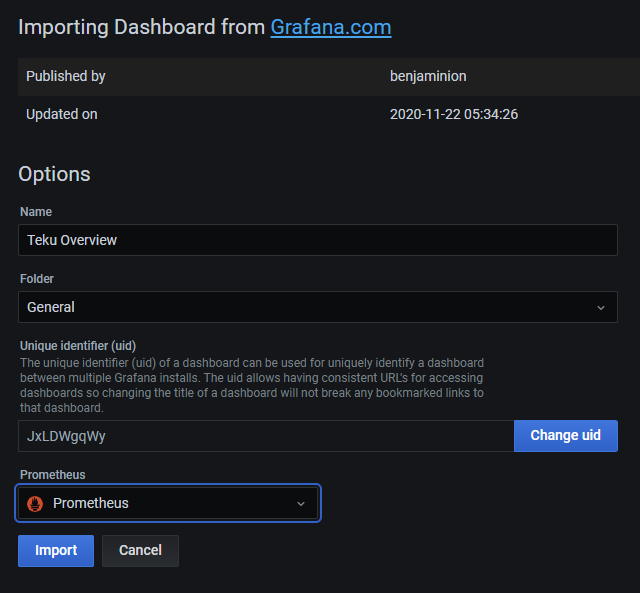
Use code 13457 to import official Teku's single validatordash boardor import Ben Edgington's with code 12522dash board

dash board
first level title
write at the end
write at the end
If you have any feedback, you can find it atTwitterorRedditor
contact me onfriends linkIf you enjoyed this tutorial and want others to follow it, please use
Share the tutorial!
Support: somer.eth
exist
existherehere
$ cd ~$ cd teku
$ sudo git fetch --tags && git checkout
$ sudo ./gradlew installDist
$ sudo systemctl stop teku
$ sudo rm -r /usr/local/bin/teku # <-- Delete old build
$ sudo cp -a ~/teku/build/install/teku/. /usr/local/bin/teku
$ sudo systemctl start teku
$ sudo systemctl status teku # <-- Check status
$ sudo journalctl -fu teku # <-- Check status
. For example: $ git fetch --tags && git checkout 20.11.0-RC2.
Official Account: ETH Chinese Station
Website: ethereum.cn