




Take you hand in hand to participate in the Ethereum 2.0 main network pledge


source|someresat.medium.com

source|
Ubuntu v20.04 (LTS) x64 server UbuntuBased on the Teku client of ConsenSys, this article explains in detail how to participate in the Ethereum 2.0 mainnet pledge. Mainly based on the following technologies:
Go Ethereum Node (code branch) Go Ethereumnode (code branch)
ConsenSyscode branchcode branch)
Browser Plugin Encryption WalletMetaMask
This tutorial refers to various materials on the Internet, thanks to the contributors who provided the materials!
thank you
This tutorial refers to various materials on the Internet, thanks to the contributors who provided the materials!
gratefulEthStakergrateful
first level title
disclaimer
first level title
support
For technical support, please contact:
The EthStaker community is an Ethereum 2.0 Staking community, rich in resources and very friendly.
Reddit:https://www.reddit.com/r/ethstaker/
Discord:https://discord.gg/7z8wzehjrJ
first level titlehttps://discord.gg/trQ378WCp4
condition
condition
Also need to prepare:
Ubuntu Server v20.04 (LTS) amd64Ubuntu Server v20.04 (LTS) amd64
Or a newer, Ubuntu server installed and running on your local computer or in the cloud.
Running a local computer helps with decentralization, because if a cloud provider goes down, all nodes hosted on that provider go down with it.MetaMaskInstalled or configured browser plugin Crypto Wallet
(or Portis, Fortmatic). A computer with an operating system (Mac, Windows, Linux, etc.) and a browser (Brave, Safari, FireFox, etc.).
first level title
Require
Require
first level title
overview
The following simplified diagram indicates the scope of this tutorial, and the yellow ones are the parts covered by this article:
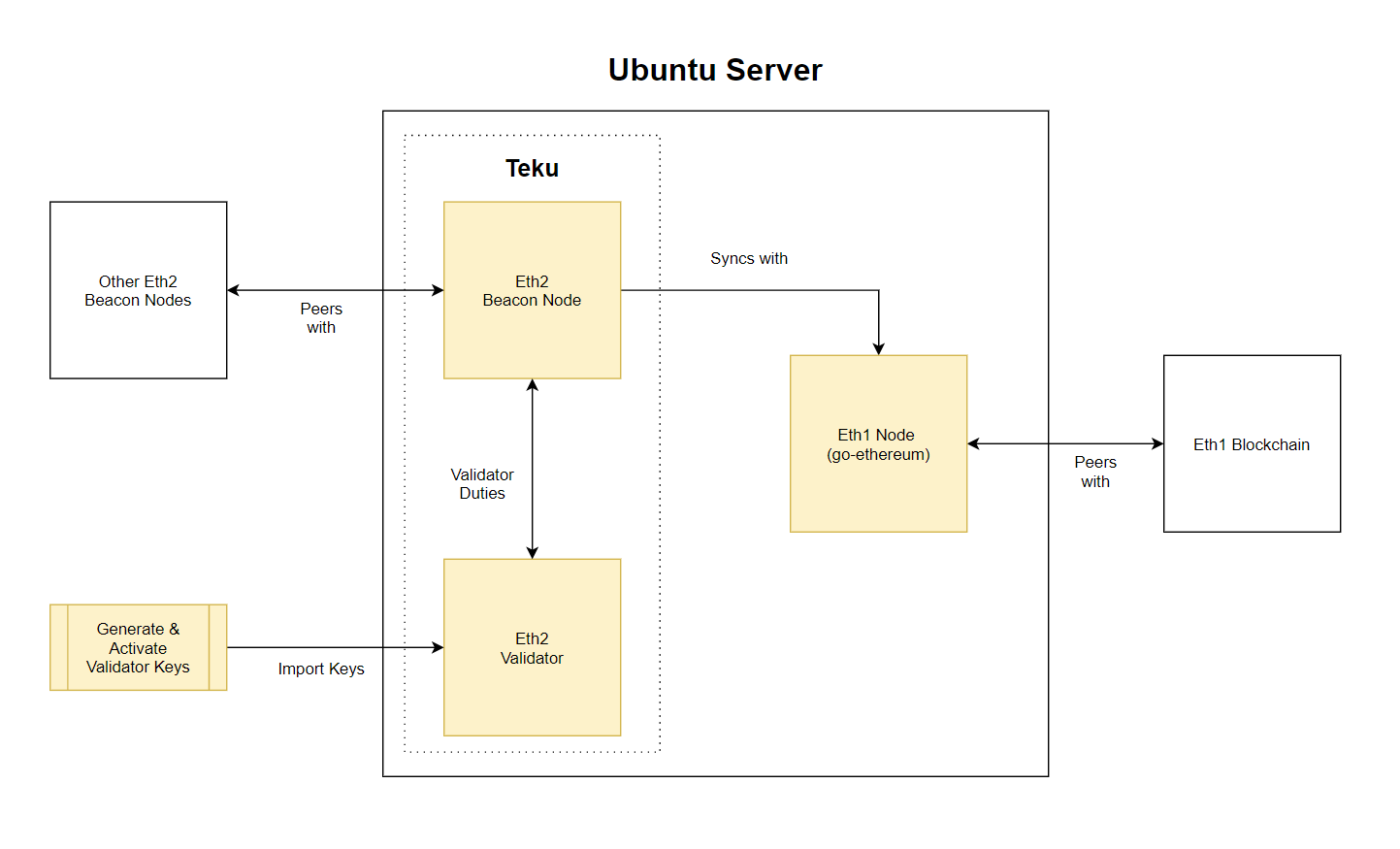
The whole process can be conceptualized as:
The whole process can be conceptualized as:
Generate validator key pair and deposit data
Prepare Ubuntu server (firewall, security settings, etc.)
Set up an Eth1 node and synchronize the data of the Eth1 blockchain
Let's get started now!
Let's get started now!
first level title
Step 1: Generate pledge data
Participating in staking starts with deciding how many validator nodes you want to run and generating some data files based on that.
A validator node needs to deposit 32 ETH, and you must have enough ETH in your MetaMask wallet. For example, if you plan to run 5 validator nodes, you will need to prepare 160 ETH (32*5) and reserve some gas fees. The deposit process will be explained later, and the following will teach you how to run the device.
click
clickhereDownload the latest release of the Deposit Command Line Interface app (CLI app).
Download link:https://github.com/ethereum/eth2.0-deposit-cli/releases/
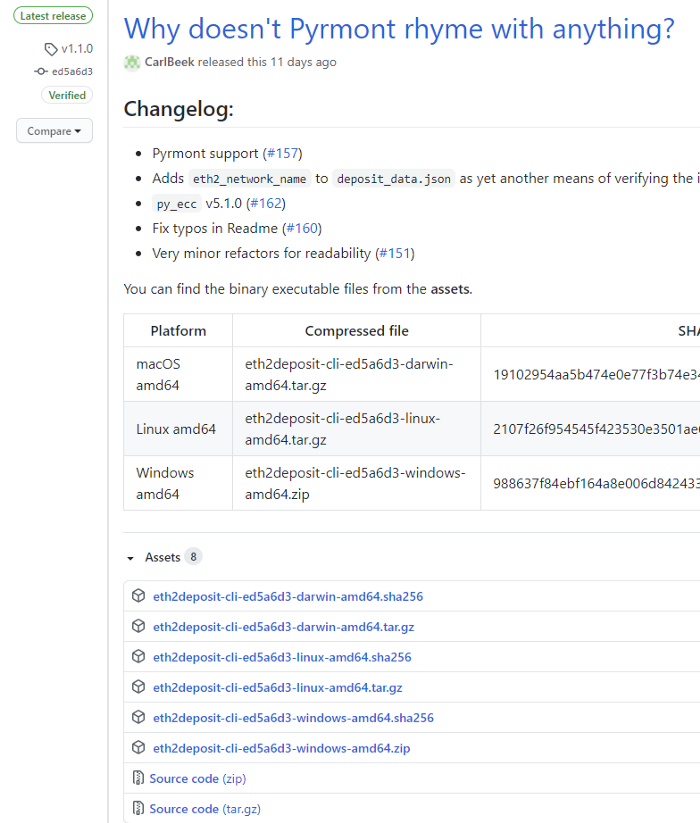
In the "Assets" column, select the version that matches your device (such as Windows, Mac, Linux Desktop, etc.) and download it.
secondary title
Run the deposit tool (Eth2 deposit CLI)
Unzip the file, there should be a binary file (executable) inside. The deposit tool generates a file for staking and a set of seed phrases. This set of mnemonics needs to be kept securely. There are two options below:
Suggested solution: Copy and paste this binary file to a USB drive. Connect to a computer that has never been connected to the Internet before, copy the file to the computer and start running.
Not recommended: Run on the computer you are currently using. But network connections can lead to leaking your mnemonic key. If you don't have a computer that isn't connected to the network, then disconnect from the network before starting the run.
Linux/Mac:
./deposit new-mnemonic --num_validators
Windows:
deposit.exe new-mnemonic --num_validators
. For example: --num_validators 2
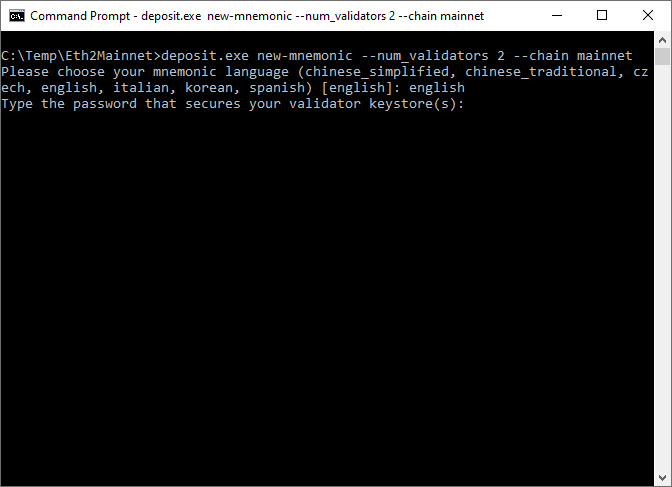
After performing the above steps on your chosen computer, you will be asked to create a validator keystore password and keep it in a safe place. In a later step, you will need this keystore to upload the validator key to Teku's validator wallet.
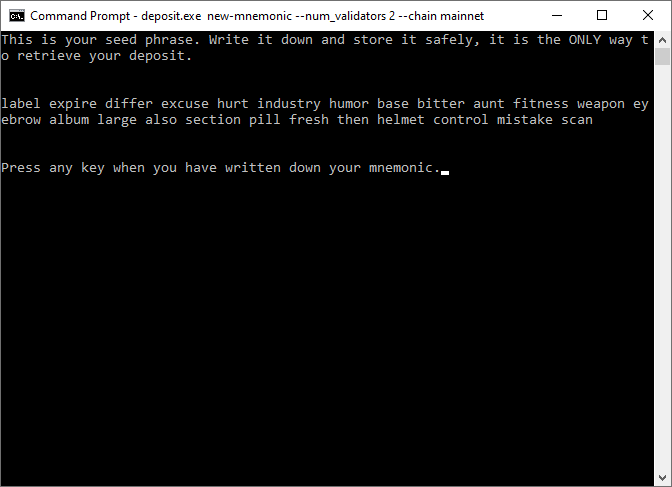
A set of mnemonic phrases will be generated, it is very important that you keep them in a safe place. Because in the end you need the mnemonic to generate the withdrawal key to withdraw the pledged ETH, and you also need to use the mnemonic when adding validator nodes. If you lose your seed phrase, there is no way to withdraw your assets.
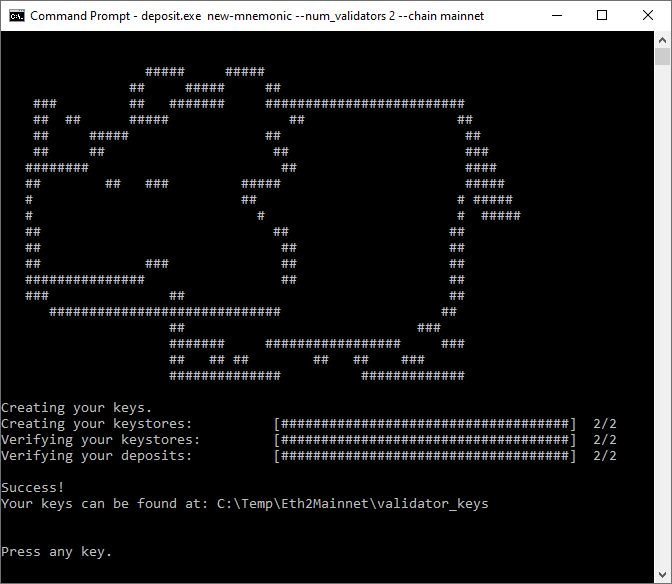
Once you click to confirm that you have memorized the mnemonic, your validator key pair will be generated.
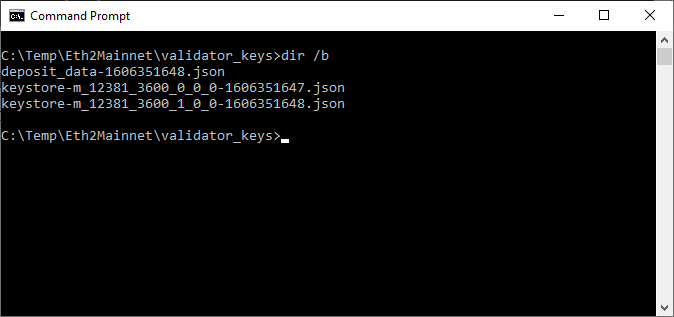
The newly created validator key pair and deposit data file will be placed in the specified location. The contents of the folder are as follows:
About these files:
· The file keystore-m...json contains the encrypted validator signing key. Each validator node corresponds to a "keystore-m". This file will be imported into the Teku validator wallet for use when staking. These files then need to be copied and pasted into the Ubuntu server.
secondary title
final steps
Now that you have your deposit data and keystore files, it's time to set up your Ubuntu server.
It is very important to complete and verify your staking setup first. If your ETH deposit is activated but the staking setup is not ready, you will be penalized for sabotage.
first level title
Step 2: Connect to the server
Using an SSH port, connect to your Ubuntu server. If you are logged in as root, it is best to re-create a user account with administrative privileges, because logging in as root is very risky.
Note: If you are not logged in as root, you can skip to step 3 directly.
# adduser
Fill in your username in , set a password with a high security factor, and enter other optional information.
# usermod -aG sudo
Grant administrative privileges to the new user by adding it to the sudo group. In this way, the user enters sudo before the command line, and the operation will be performed with the authority of the super user.
# rsync --archive --chown=
Log in to the Ubuntu server.
text
Make sure the system is updated to the latest software and security settings.
$ sudo apt update && sudo apt upgrade$ sudo apt dist-upgrade && sudo apt autoremove
$ sudo reboot
Security is very important. But since this article is not a guide for security, only some basic settings are listed.
Security is very important. But since this article is not a guide for security, only some basic settings are listed.
secondary title
Modify the SSH default port
The SSH default port is port 22, which is also a vulnerable vector, so the SSH port can be modified to prevent attacks.
$ sudo ss -tulpn | grep ':
Choose a port number between 1024 - 49151 and run the following command to retrieve the unused port number. Nothing else means the port number is not in use; red means it is in use, try another port number. For example: sudo ss -tulpn | grep ':6673'
$ sudo nano /etc/ssh/sshd_config
After determining that the port number is available, modify the default port by updating the SSH settings.
Port
Retrieve or add (if not present) the Port 22 command line in the file. Remove the # (if any) and enter the port number in the command line below.
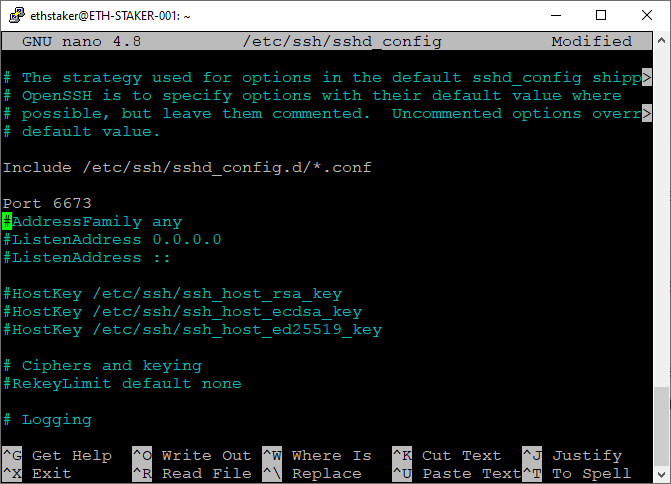
Refer to the screenshot below. Press CTRL+x and select 'y', press Enter to save and exit.
$ sudo systemctl restart ssh
Restart the SSH service to show the changes made above.
configure firewall
configure firewall
Ubuntu 20.04 servers can use the default UFW firewall to restrict traffic to the server, but first set it to allow inbound traffic from SSH, Go Ethereum, Teku.
Install UFW Firewall
$ sudo apt install ufw
Enter the command line below to ensure that UFW is installed by default.
Explicitly apply the default, denying inbound traffic and allowing outbound traffic.
$ sudo ufw default deny incoming$ sudo ufw default allow outgoing
allow ssh
allow ssh
$ sudo ufw allow
of inbound traffic. SSH requires the TCP protocol. For example: sudo ufw allow 6673/tcp
Deny SSH port number 22
NOTE: Do this step after you have finished modifying the SSH default port.
$ sudo ufw deny 22/tcp
Allow Go Ethereum
Allows peer-to-peer (P2P) connections with Go Ethereum peers (port 30303). You can skip this step if you use a third-party hosted Eth1 node.
Note: If you are hosting your Ubuntu server locally, you will need to configure your network routers to allow inbound traffic from port 30303.
$ sudo ufw allow 30303
Note: If you are hosting your Ubuntu server locally, you will need to configure your network routers to allow inbound traffic from port 30303.
Allow Teku client
Allows peer-to-peer connections with Teku for operations on beacon chain nodes (port 9000).
$ sudo ufw allow 9000
Note: If you are hosting your Ubuntu server locally, you will need to configure your network routers to allow inbound traffic from port 9000.
$ sudo ufw enable$ sudo ufw status numbered
Refer to the screenshot below.
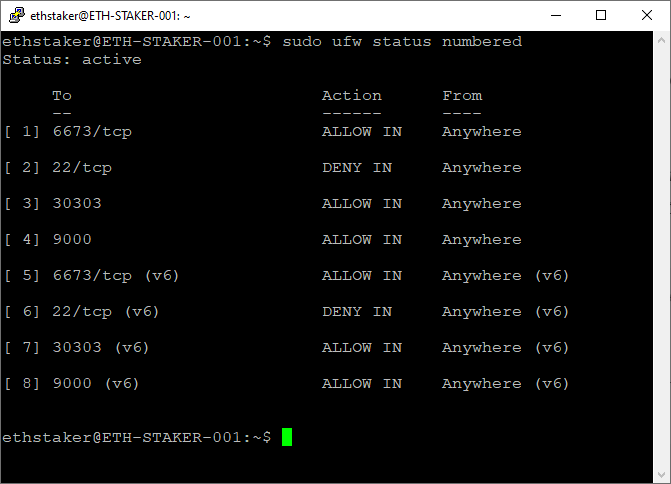
first level title
Step 5: Configure the Timer
$ timedatectl
Ubuntu has time synchronization built in and is activated by default using systemd's timesyncd service. Verify that it is functioning correctly.
$ sudo timedatectl set-ntp on
To activate the NTP service, run:
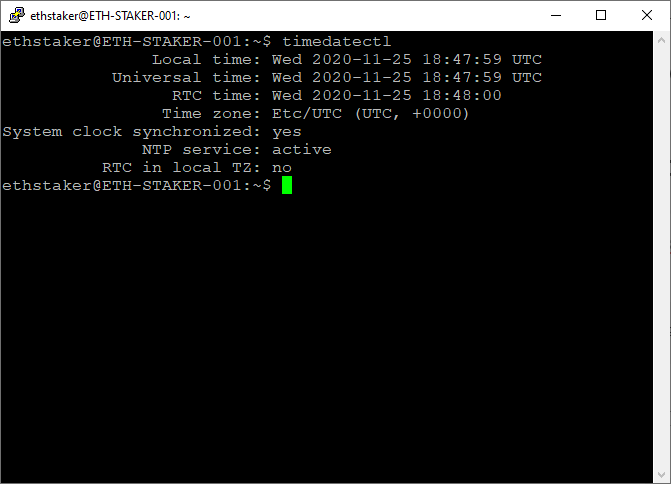
Only a single timer service can be used. If you have installed NTPD before, you need to check whether this file still exists, and if it exists, please operate the following command line to delete it.
$ ntpq -p$ sudo apt-get remove ntp
first level title
Step 6: Setup an Eth1 Node
secondary title
Install Go Ethereum
Install Go Ethereum
$ sudo add-apt-repository -y ppa:ethereum/ethereum$ sudo apt update
$ sudo apt install geth
Create a data directory for the Eth1 blockchain to store Eth1 node data.
$ sudo useradd --no-create-home --shell /bin/false goeth
Create a data directory for the Eth1 blockchain to store Eth1 node data.
$ sudo mkdir -p /var/lib/goethereum
Set the permissions of the directory. The goeth account needs permission to modify the data directory.
$ sudo chown -R goeth:goeth /var/lib/goethereum
Create a systemd service configuration file to configure the service.
$ sudo nano /etc/systemd/system/geth.service
Copy and paste the following service configuration into the document.
[Unit]Description=Go Ethereum Client
After=network.target
Wants=network.target[Service]
User=goeth
Group=goeth
Type=simple
Restart=always
RestartSec=5
ExecStart=geth --http --datadir /var/lib/goethereum --cache 2048 --maxpeers 30[Install]
WantedBy=default.target
Copy and paste the following service configuration into the document.flags:
need attentionhttp://localhost:8545)。
--http is used to expose an HTTP port for connecting to Teku beacon chain nodes (
--cache refers to the size of the internal cache in GB. The value increases or decreases depending on your available system memory. Setting 2048 will use about 4-5 GB of RAM.
--maxpeers refers to the maximum number of connected peers. The larger the number of nodes, the more space available for network data. So remember not to set this value too low, or your Eth1 nodes will struggle to keep in sync.
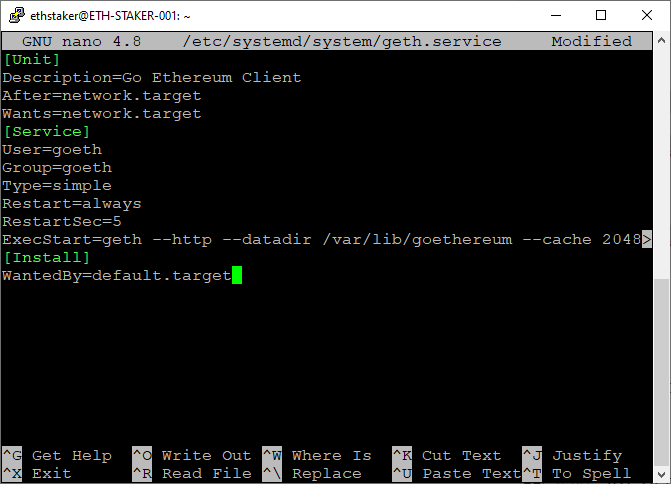
Refer to the screenshot below. Press CTRL+x and select 'y', press Enter to save and exit.
$ sudo systemctl daemon-reload$ sudo systemctl start geth
$ sudo systemctl status geth
Refer to the screenshot below:
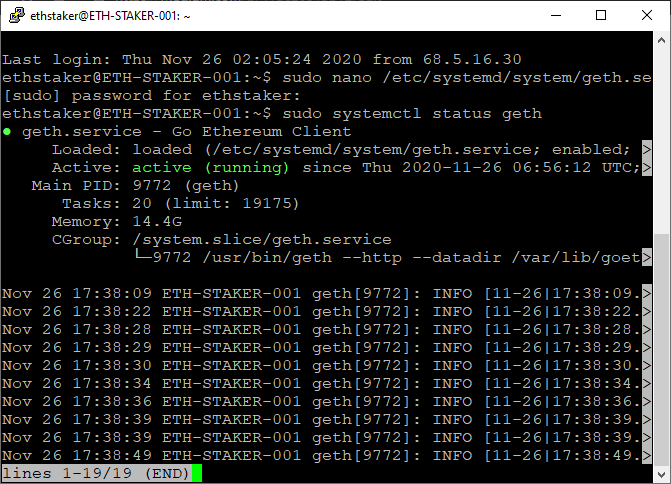
If you did everything right, it will say "active (running)" in green font". If it doesn't show up, you'll need to go back and repeat the above steps to fix the problem. Press Q to quit (this operation will not affect the geth service).
Allows the geth service to start automatically on system reboot.
$ sudo systemctl enable geth
Allows the geth service to start automatically on system reboot.
$ sudo journalctl -fu geth.service
Refer to the screenshot below:
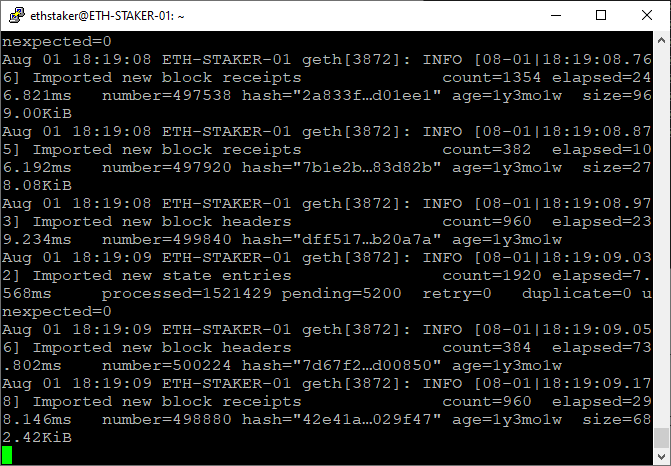
secondary title
Check sync status
geth attach http://127.0.0.1:8545> eth.syncing
To check the Eth1 node sync status, use the following command to access the console.
If it shows false , your sync is complete. If it says Sync Data, it means you're still syncing. For reference, there are about 700-800 million knownStates.
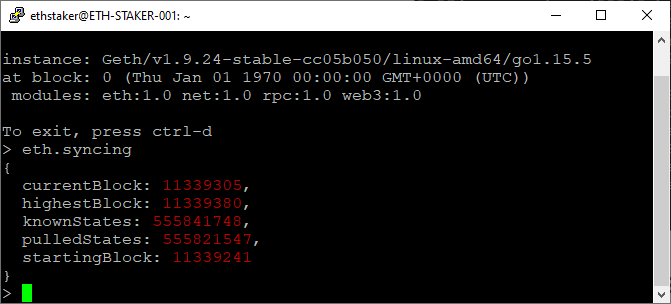
Press "CTRL+d" when done to exit.
secondary title
Check connected peers
geth attach http://127.0.0.1:8545> net.peerCount
To check which peers your Eth1 node is connected to, use the following command to access the console.
Press "CTRL+d" when done to exit.
secondary title
Add bootnodes (optional)https://gist.github.com/rfikki/a2ccdc1a31ff24884106da7b9e6a7453Sometimes it can take a while to find a peer to sync with, bootnodes can be added to improve the situation. access
$ sudo systemctl stop geth$ sudo nano /etc/systemd/system/geth.service
Modify the ExecStart line to add the --bootnodes flag: List the latest peer nodes below, separated by commas.
ExecStart=geth --http --datadir /var/lib/goethereum --cache 2048 --maxpeers 30 --bootnodes "enode://d0b4a09d072b3f021e233fe55d43dc404a77eeaed32da9860cc72a5523c90d31ef9fab7f3da87967bc52c1118ca3241c0eced50290a87e0a91a271b5fac8d0a6@157.230.142.236:30303,enode://5070366042daaf15752fea340e7ffce3fd8fc576ac846034bd551c3eebac76db122a73fe8418804c5070a5e6d690fae133d9953f85d7aa00375d9a4a06741dbc@116.202.231.71:30303"
Save the file and exit. Then restart the service and watch.
$ sudo systemctl daemon-reload$ sudo systemctl start geth
$ sudo journalctl -fu geth.service
Note: There is a specific set of steps that need to be followed to update Geth. See "Appendix A: Updating Geth" for more information.
first level title
Step 7: Download Teku
The Teke client consists of two binary files: the beacon chain node and the validator client. This step will explain how to download Teku binaries.First, visit
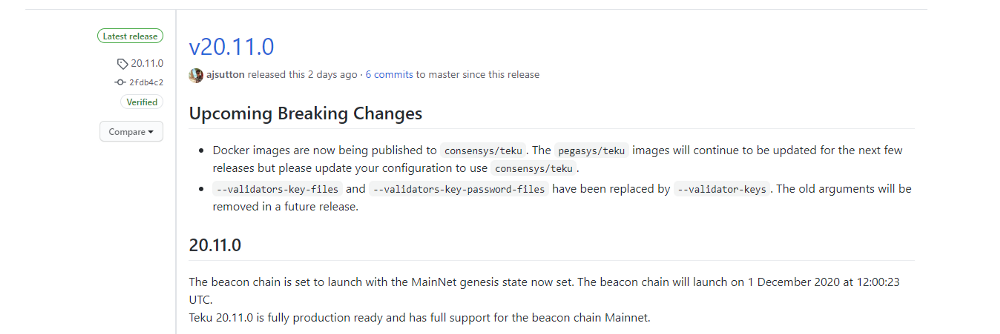
https://github.com/ConsenSys/teku/releases and find the latest released Teku version. Usually at the very top of the page, for example:

Select "binary distribution" in the "Downloads" column.
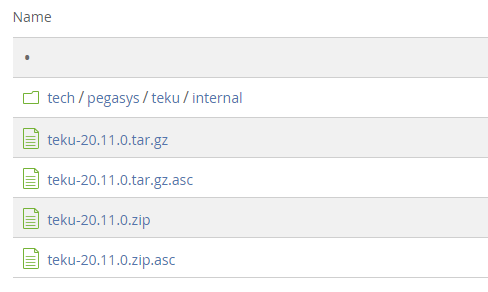
Then copy and paste the download link into the file "teku-…tar.gz". Please make sure the copied link is correct.
Run the following commands to download these files. Change the URL in the instructions section below to the download link for the latest version.
$ cd ~$ sudo apt install curl
$ curl -Lo teku-20.11.0.tar.gz https://bintray.com/consensys/pegasys-repo/download_file?file_path=teku-20.11.0.tar.gz
Note the syntax is curl -Lo
$ tar xvf teku-20.11.0.tar.gz$ sudo cp -a teku-20.11.0 /usr/local/bin/teku
Extract the binaries from the archive and copy them to the /usr/local/bin directory where the Teku client will run them. Modify the file name as required.
$ sudo apt install default-jre
Install the files necessary to run Java.
$ cd ~$ sudo rm teku-20.11.0.tar.gz
$ sudo rm -r teku-20.11.0
NOTE: There is a specific set of steps that need to be followed to update Teku. See "Appendix B: Updating Teku" for more information.
first level title
Import a validator key pair to configure Teku.
secondary title
Copy the validator keystore fileIf your validator store file keystore-m...json is not generated on your Ubuntu server, then you will need to copy-paste these files into your local directory. You can copy the file over with a USB (if your server is local), or use。
Place the file at: $HOME/eth2deposit-cli/validator_keys. Create file directories if necessary.
secondary title
Import the keystore file into the validator
$ sudo mkdir -p /var/lib/teku$ sudo cp -a /$HOME/eth2deposit-cli/validator_keys /var/lib/teku
Create a directory to store the validator keys and copy over the validator_keys directory containing the keystore-m...json file.
$ cd /var/lib/teku/validator_keys$ ls
$ sudo rm
secondary title
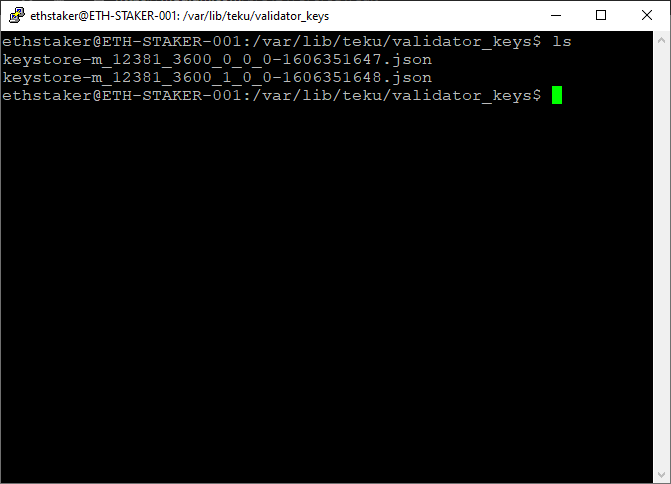
Create a validator password document
Create a validator password document
Teku requires a password file to access each validator account while running and automatically restarting the service.
Each keystore-m...json file requires a corresponding password file. This step is required even if the password for each validator account is the same. The naming of the password file needs to match the corresponding keystore-m...json file.
$ ls /var/lib/teku/validator_keys
Get a list of password storage documents
For each keystore_m*.json file, create a password file with the same name.
$ sudo nano /var/lib/teku/validator_keys/
Name this json document. Don't forget to add .txt at the end. For example: sudo nano /var/lib/teku/validator_keys/keystore-m_12381_3600_0_0_0–1606351647.txt
In the txt file, replace the keystore password with YourKeystorePasswordForThisValidator (the password you provided when creating the validator file in step 1)
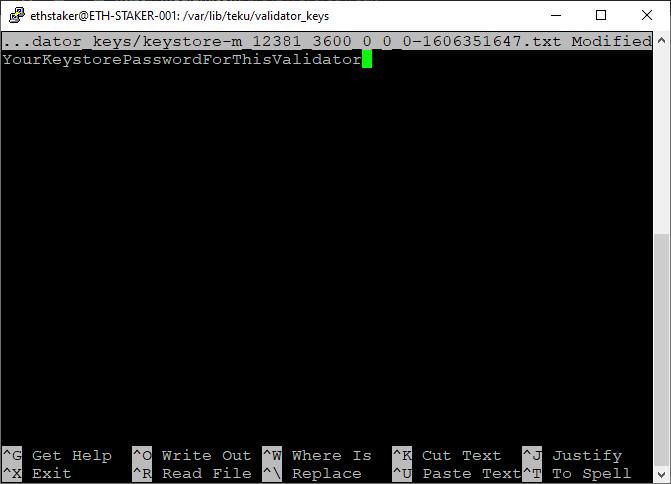
Refer to the screenshot below. Press CTRL+x then 'y', press enter to save and exit.
Repeat the above steps for each *.json file until each json file has a txt file containing the corresponding key storage password.
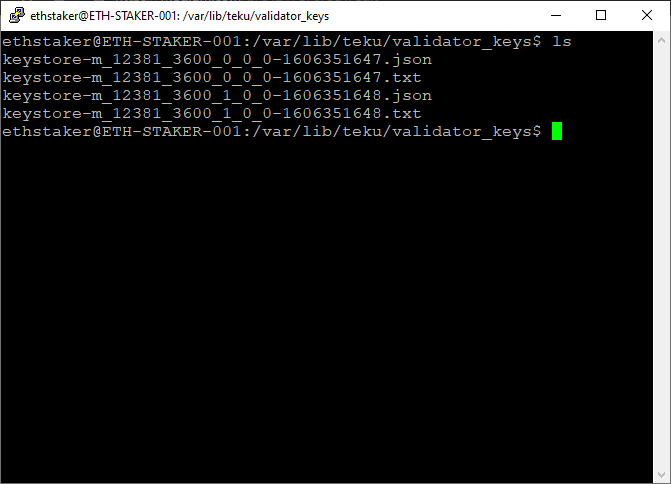
NOTE: There should not be a *deposit_data-\*.json* file. If there is, delete it. It will cause an error because Teku will think it has a corresponding password file.
first level title
secondary title
Set up accounts and directories
secondary title
$ sudo useradd --no-create-home --shell /bin/false teku
Setting permissions
Setting permissions
$ sudo chown -R teku:teku /var/lib/teku$ ls -dl /var/lib/teku
Set directory permissions. The Teku account needs authorization if it wants to modify the data directory (/var/lib/teku) created in the previous step.
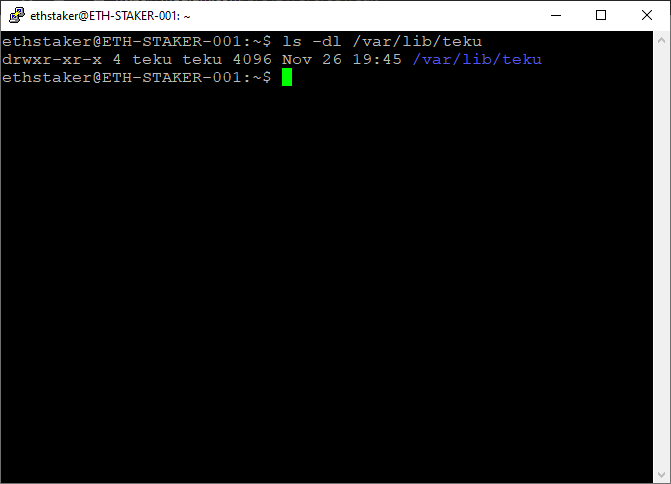
Refer to the screenshot below.
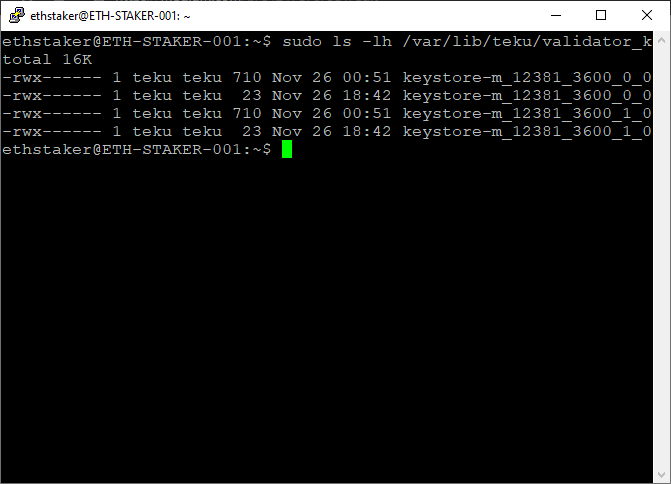
$ sudo chmod -R 700 /var/lib/teku/validator_keys$ sudo ls -lh /var/lib/teku/validator_keys
Refer to the screenshot below.
secondary title
Create a systemd service config file to configure the service
$ sudo nano /etc/systemd/system/teku.service
Copy and paste the code below into the document
[Unit]Description=Teku Eth2 Client
Wants=network-online.target
After=network-online.target[Service]
User=teku
Group=teku
Type=simple
Restart=always
RestartSec=5
Environment="JAVA_OPTS=-Xmx2g"
ExecStart=/usr/local/bin/teku/bin/teku --data-base-path=/var/lib/teku --eth1-endpoint=http://localhost:8545 --validator-keys=/var/lib/teku/validator_keys:/var/lib/teku/validator_keys --rest-api-enabled=true --rest-api-docs-enabled=true --metrics-enabled --validators-graffiti="
WantedBy=multi-user.target
Copy and paste the code below into the documentflags:
need attention
Environment=”JAVA_OPTS=-Xmx2g” limits the heap size to 2GB, so Teku runs with about 3–3.5GB of total memory available.
--validators-graffiti="
Refer to the screenshot below. Press CTRL+x and select 'y', press Enter to save and exit.
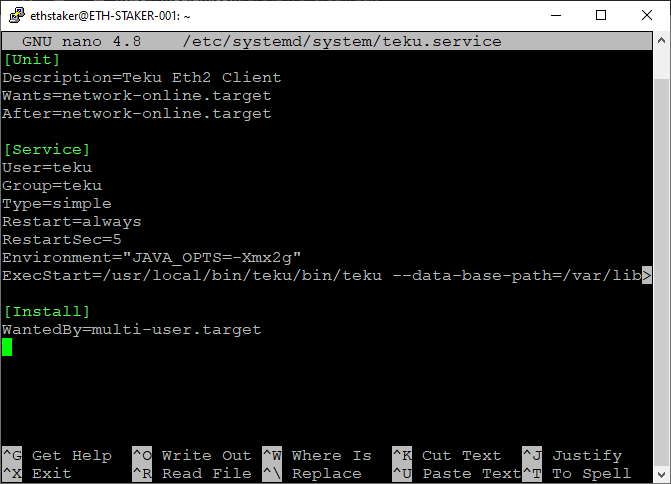
Reload systemd to show the changes.
$ sudo systemctl daemon-reload
Note: If you are running a local Eth1 node (see step 6), you should wait until it is fully synced before starting the Teku service. Check the progress here: *sudo journalctl -fu geth.service*
Start the service and check to make sure it is running correctly.
$ sudo systemctl start teku$ sudo systemctl status teku
Refer to screenshot below
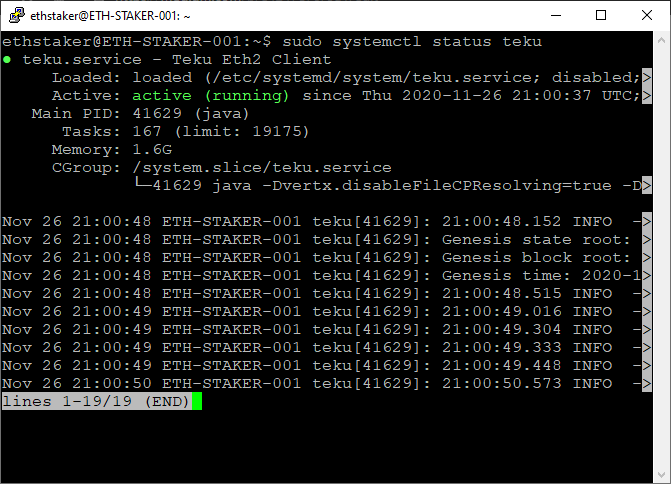
If you did everything right, it will say "active (running)" in green font". If it doesn't show up, you'll need to go back and repeat the above steps to fix the problem. Press Q to exit (will not affect teku's service).
Allows the service to automatically restart when the system restarts.
$ sudo systemctl enable teku
Allows the service to automatically restart when the system restarts.
$ sudo journalctl -fu teku.service
If the Eth2 chain is in a post-genesis state, the Teku beacon chain will start synchronizing data. It may take several hours to fully sync. You can track progress or check for errors by running the journalctl command. Press CTRL+c to exit (will not affect teku's service)
Nov 26 21:00:50 ETH-STAKER-001 teku[41629]: 21:00:50.573 INFO - Eth1 tracker successfully caught up to chain headNov 26 21:10:49 ETH-STAKER-001 teku[41629]: 21:10:49.010 INFO - 4 days 14 hours 49 minutes 34 seconds until genesis time is reached. Peers: 74
A truncated view of the log displays the following status information.
When the Eth2 mainnet launches, the beacon chain and validators will automatically start processing data.beaconcha.inCheck your certifier status. Just search for your validator public key or use your MetaMask (or other) wallet address to search. It may take some time for your data to appear on the website.
first level title
Step 10: Make a Validator Deposit
Now that your node is set up and running, you will need to deposit ETH to your validator node.
NOTE: If you have already submitted your pledge deposit, you can skip this step
This step is about depositing the required ETH into Eth2.0's deposit contract. Do not send ETH to the deposit contract. This requires launching your MetaMask (or other) wallet via the Eth2.0 Launchpad website on a browser.
NOTE: If doing it after genesis, you will need to make your deposit before both your Eth1 node and the beacon chain are fully synced. If you don't, Teku will be in a sabotage state while your Eth1 node or beacon chain is syncing, and you may incur a sabotage penalty.https://launchpad.ethereum.org/
Keep clicking through the warning steps as the screen transitions until you reach the key pair generation section. Choose the number of validators you intend to run. Choose a value that matches the number of certifier files you generated in step 1.
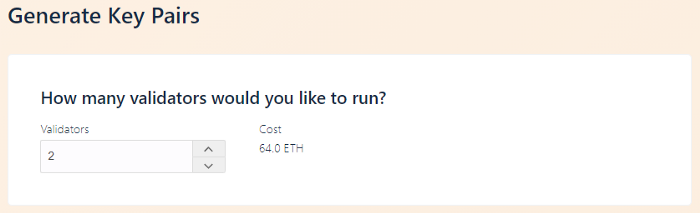
Scroll down to see if you agree with the content, then click "Continue".
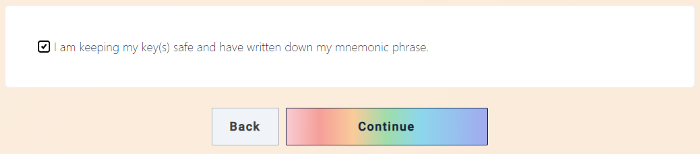
Scroll down to see if you agree with the content, then click "Continue".
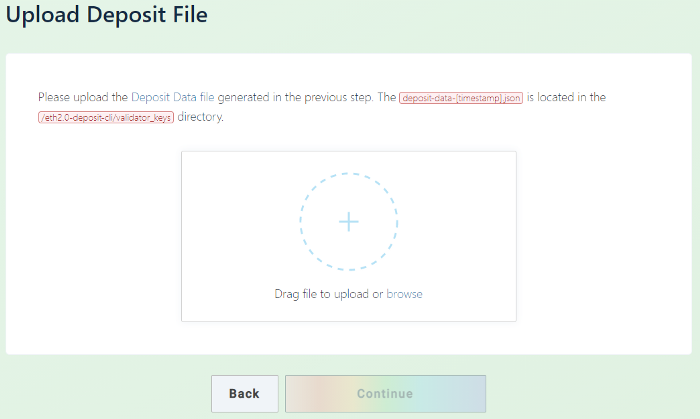
You will be asked to upload the deposit_data-[timestamp].json file. This document you generated in step 1. Browse/select or drag and drop the document, then click Continue.
Connect your wallet. Select MetaMask (or any other supported wallet), log in, select the wallet that holds your ETH, and click Continue.
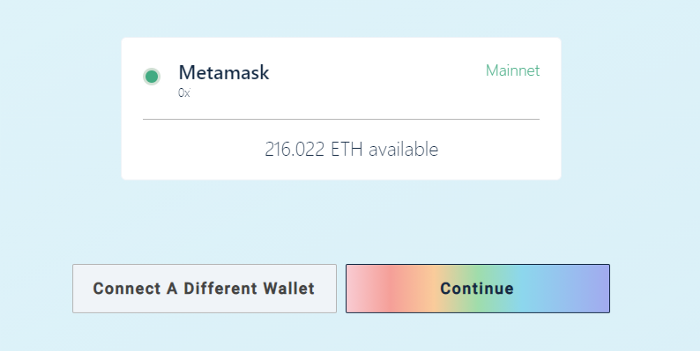
Your MetaMask balance will be displayed. If you choose the mainnet and you have sufficient ETH balance, the website will allow you to proceed to the next step.
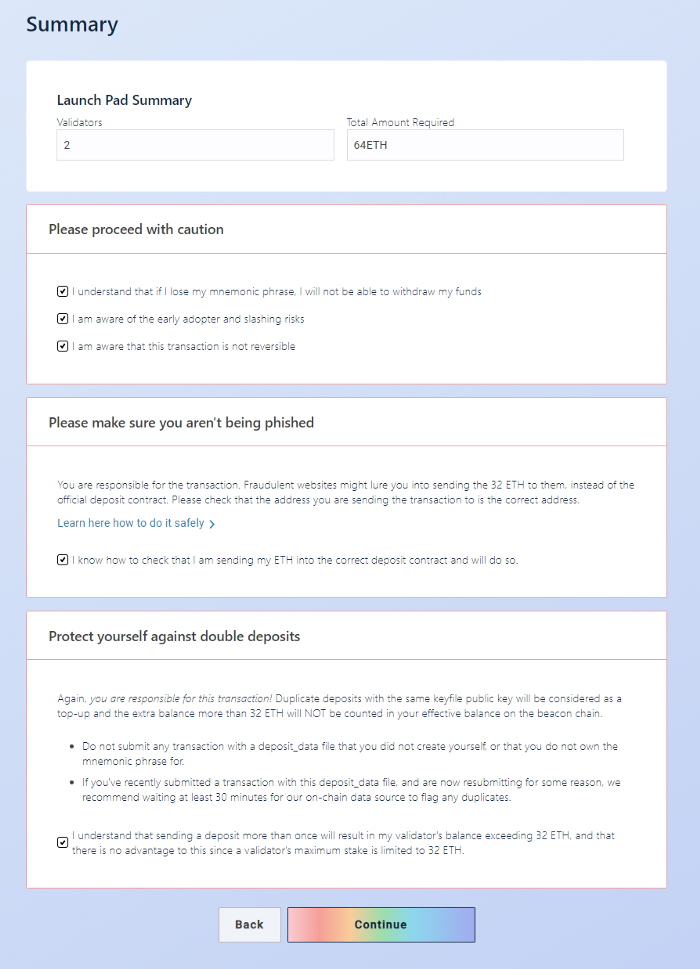
If you are ready to make a deposit, click"Initiate All Transactions"(start all transactions).
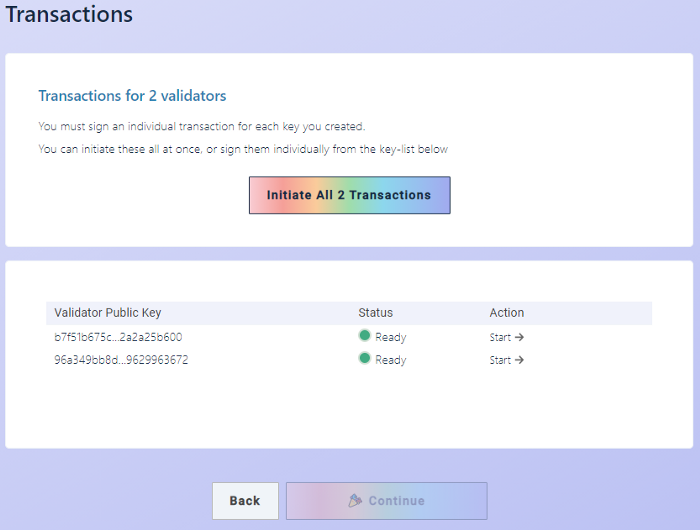
When you get to the point where you can confirm each transaction, the MetaMask (or other wallet) window will pop up automatically.
When all transactions are successfully completed, your stake is complete!
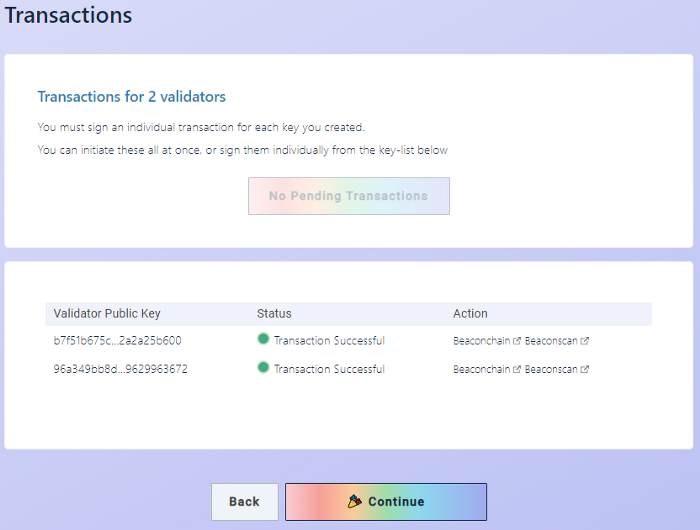
Check the status of your validator deposit
Check the status of your validator deposit
Newly joined validators will need to wait (a few hours to a few days) to activate. You can check the status of your key by following these steps:
Newly joined validators will need to wait (a few hours to a few days) to activate. You can check the status of your key by following these steps:
Copy your MetaMask (or other) wallet address.beaconcha.in/
Go here:
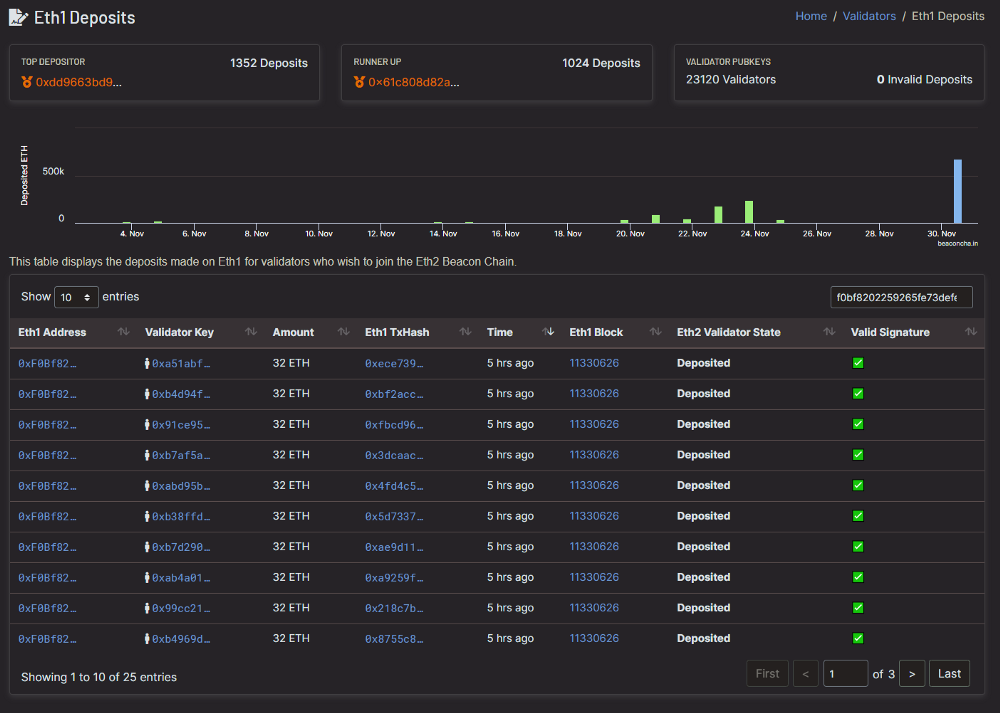
Search your key with your wallet address
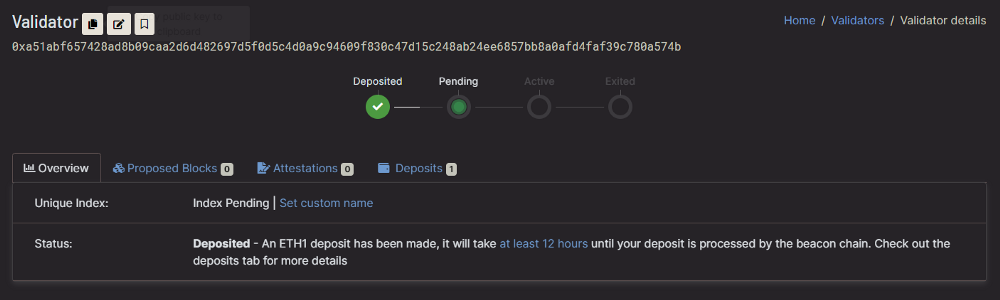
Click on the details of a verifier, and after each verifier is activated, you will see an estimated time in the Status column.
You now have a working beacon chain, a validator node, and your mainnet deposits in front of you. If the Ethereum 2.0 mainnet is live, once your deposit is activated, you will start working and earning.
It's time for a fat house water carnival.
first level title
Step 11: Monitoring
Because of some unresolved security issues, monitoring will be added to this tutorial in the future.
Conclusion and follow-up suggestions
Thank you all for giving me this opportunity. Hope this tutorial can help you.
Next steps:
- Triple check all key and password backups.
- Reboot your computer and make sure the services start automatically.
- Learn how to upgrade client and server software.
- Use htop to monitor the resources of the local computerbeaconcha.in- familiar, which allows you to monitor your validators, which provides alerts (sent via email, registration required) and up to。
Discord, keep an eye out for important notifications.Discord、 Twitter- please atReddit,or
Share your feedback on this tutorial.Ethstaker- exist
Help others set up on the discord.friend link- use
first level title
further reading
further reading
It is highly recommended that you get information from as many sources as possible, and there are many other resources that can help you get familiar with staking on Eth2.
If the authors have not tested or verified these sources, you use them at your own risk.Prysm | Lighthouse | Teku | Nimbus
- - Official documentation from the client team
- An unofficial docker environment for Ethereum 2.0 clients
- How To Set Up Eth2 Mainnet Validator System On Ubuntu
- Guide | How to set up a validator on the ETH2 mainnet
- Guide | Security Best Practices for ETH2 Validator Beacon Chain Nodes
- Telegram service pledged by Ethereum 2.0 https://9elements.com/blog/ethereum-2-0-2/)
first level title
If you need to update to the latest version of Geth, follow these steps:
$ sudo systemctl stop teku$ sudo systemctl stop geth
$ sudo apt update && sudo apt upgrade
$ sudo systemctl start geth
$ sudo systemctl status geth # <-- Check for errors
$ sudo journalctl -fu geth # <-- Monitor
$ sudo systemctl start teku
$ sudo systemctl status teku # <-- Check for errors
$ sudo journalctl -fu teku.service # <-- Monitor
first level title
Appendix B - Updating Teku
First, go toherehere"binary distribution"Find out about the latest Linux releases. In the Downloads column, click
. Then copy the download link to the teku-…tar.gz file. Make sure you copied the correct link.
$ cd ~$ sudo apt install curl
$ curl -Lo teku-20.11.0.tar.gz https://bintray.com/consensys/pegasys-repo/download_file?file_path=teku-20.11.0.tar.gz
Change the URL in the instructions section below to the download link for the latest version.
$ sudo systemctl stop teku
Stop the Teku client service.
$ tar xvf teku-20.11.0.tar.gz$ sudo rm -r /usr/local/bin/teku # <-- Remove the old files
$ sudo cp -a teku-20.11.0 /usr/local/bin/teku
Extract the binaries from the archive, and copy /usr/local/bin to the directory. Modify the URL name if necessary.
$ sudo systemctl start teku$ sudo systemctl status teku # <-- Check for errors
$ sudo journalctl -fu teku.service # <-- Monitor
Clean up proposed documentation. Modify the document name if necessary.
$ cd ~$ sudo rm teku-20.11.0.tar.gz
$ sudo rm -r teku-20.11.0
first level title
Appendix C - Extending Logical Volumes
Fatal: Failed to register the Ethereum service: write /var/lib/goethereum/geth/chaindata/383234.ldb: no space left on device
Many times Ubuntu only pre-provisions larger 200GB SSDs, causing users to run out of storage space when syncing their Eth1 nodes. The error message is similar to:LVMTo solve this problem, assuming you have a solid state drive larger than 200GB, you can use the following steps to
$ sudo lvdisplay # <-- Check your logical volume size$ sudo lvm
> lvextend -l +100%FREE /dev/ubuntu-vg/ubuntu-lv
> exit
$ sudo resize2fs /dev/ubuntu-vg/ubuntu-lv
$ df -h # <-- Check results
(Logical Volume Management) To expand capacity:
This will resize your hard drive to its maximum available space.EthStakerAsk for help on Discord.
first level title
This article (tutorial) is for informational purposes only and does not constitute professional advice. The author does not guarantee the accuracy, quality, completeness, timeliness and availability of any information in the article. All information herein is provided "as is" without warranty of any kind and is subject to change without notice. The author disclaims all express, implied and statutory warranties of any kind, including warranties as to the accuracy, timeliness, completeness or suitability of the content of the articles for any purpose. Neither is the author liable for any direct, indirect, incidental, consequential or any other damages arising out of the use of this document or based on the information presented herein. This includes any personal injury, business interruption, loss of use, loss of data, loss of profits or any other pecuniary loss, whether in contract, negligence or other misuse, even if the author has been advised of the possibility.
Official Account: ETH Chinese Station
Official Account: ETH Chinese Station